Supercharge your store with Monto.io's full suite of ecommerce tools that turn visitors into loyal customers. Brought to you by the same team as CartGenie.
The Monto add-on gives you many more than 3 wishes... all 8 apps are included in one integration.
You can subscribe to individual apps a la carte to get exactly the functionality you want (all-inclusive plan coming soon!).
Integrate with Monto(you must be the owner of your CartGenie account to do this)

75% of sales online are lost to abandoned carts. Monto helps you automatically recover lost sales with a customizable, automated sequence of Abandoned Cart Recovery emails to customers.

Allow your customers access to all of their past history so they can track orders, review products, and earn money referring more customers to your site –all in a branded and customizable dashboard.

Collect, manage and display reviews on your Webflow eCommerce and CMS sites. Nearly 95% of shoppers read online reviews before making a purchase. Even having just five reviews can boost sales 270%.

Boost customer retention with Monto's Loyalty Rewards app for Webflow. Reward customers with points for interacting with your business and let them convert the points into exclusive coupons and gifts.

Turn your fans into your sales team. Monto Affiliates is the easiest way for Webflow shops to set up an affiliate program so you can start earning more passive revenue.

Automatically translate your shop’s prices into your customers' home currency using real time exchange rates. If your store sells to multiple countries, this app is a must have. The purchase price for your products does not change and you will still receive your native currency from the buyer.

Social Proof is a powerful app that displays real recent orders and reviews to your customers, providing the social validation & FOMO that encourages visitors to take action and make a purchase. Our app is designed to instantly increase your website's conversion rates and boost your sales.

Want to know your biggest spenders? The ones who abandon carts the most often or the ones who ordered from you last Christmas? Use advanced filtering to create and maintain a segment over time.
We’ve made it super easy to integrate with Monto. Just one click and we’ll connect your CartGenie store to your Monto account!
First, be sure that you are the owner of the CartGenie account. This option will not appear for other team members.
Click on the Monto menu option on the left-hand inside your CartGenie store.
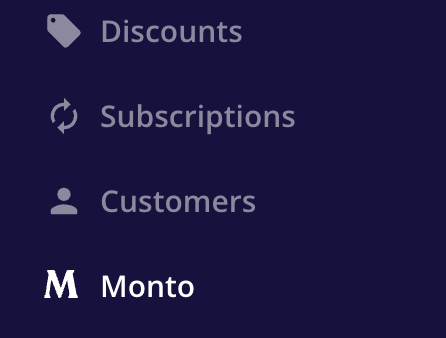
Click on the Integrate Now button on the page.
Then select whether or not you “have an existing Monto account”.
This will create a new Monto account for you using your current CartGenie email address and name. We will then automatically integrate the Monto account with your CartGenie store.
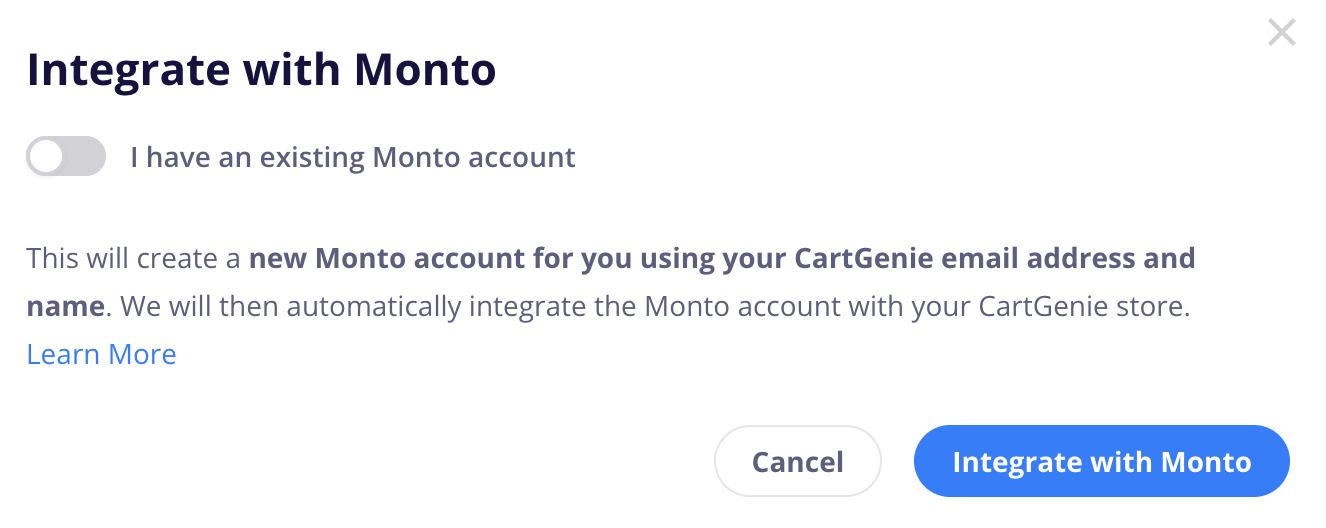
Done! You’re integrated with Monto!
Use this option if you have a current Monto account – either for your current Webflow site or another one. This will add your CartGenie store as a new site in your existing Monto account.


Done! You’re integrated with Monto!
CartGenie account owners can immediately login to their Monto account by clicking the Monto menu icon in the left-hand sidebar.
Once Monto is integrated, this option will also appear for other team members.
However, unless they have been invited as a team member inside of Monto, they will not have access to the account.
Alternatively, any Monto team member can go directly to their own Monto.io dashboard and click on the store switcher in the top left corner to find their CartGenie store.
They do not need access to CartGenie to be added to your Monto account.
Select which apps you want to install (if not using our all-inclusive plan)
Insert the Monto global script into your Webflow Site Settings > Custom Code > Header (you can find the script in the Setup steps inside of any of the apps – the code is the same for all apps and only must be inserted once)
Start boosting your sales by enabling Abandoned Cart Stages, adding Review widgets, adding Affiliates, starting a Loyalty program, enabling Social Proof popups, or more!