Twint is Switzerland’s most popular mobile payment app, offering customers a fast, secure, and familiar way to complete purchases using their smartphone. With CartGenie and Stripe, you can easily enable Twint at checkout — even if your store or Stripe account isn’t based in Switzerland. Twint works for merchants in a large number of supported countries (see list below), and there’s no requirement for you to have a Swiss bank account. However, the store currency must be set to Swiss Francs.
In this guide, you’ll learn how to activate Twint in Stripe, enable it inside CartGenie, and provide Swiss customers with a seamless QR-code-based checkout flow they already know and trust.

To add Twint, simply connect your CartGenie store to Stripe in Settings > Payment Gateways.
Connect Stripe
Then, enable the toggle for the Twint gateway.
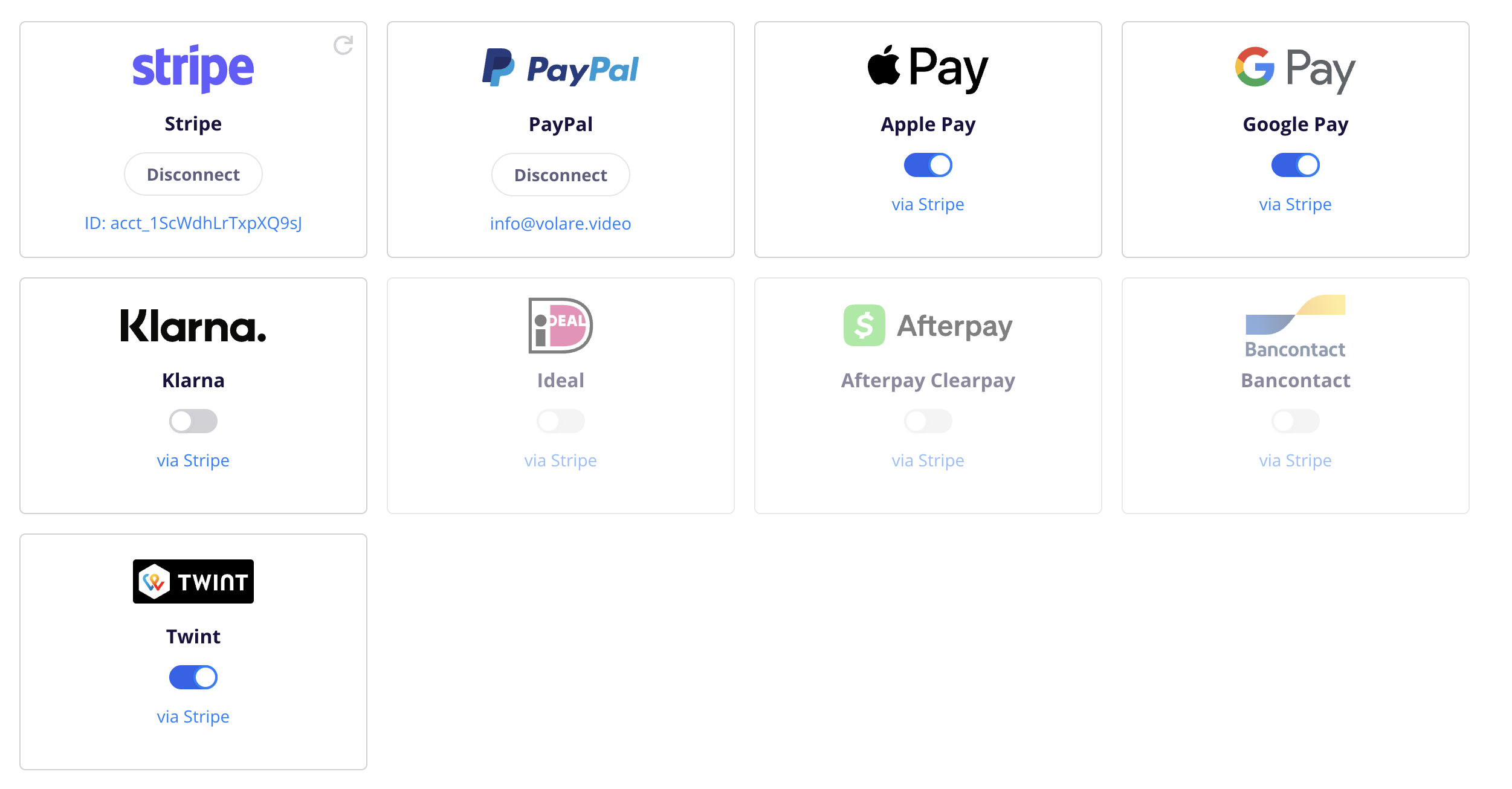
If you do not see Twint as a gateway, it means it is likely not supported by your Stripe account due to your account’s location.
If you see pink text that says “Add Required Info”, then click on it and you will be redirected to Stripe. Find the Twint payment method and click on the button beside to enter the missing info.
Next, in Webflow, ensure that your checkout page has the necessary Twint payment tab option. If not, you can use our Designer Extension to simply add the “Payment Form” block to your checkout page (found in Create Product Pages > Components > Checkout).
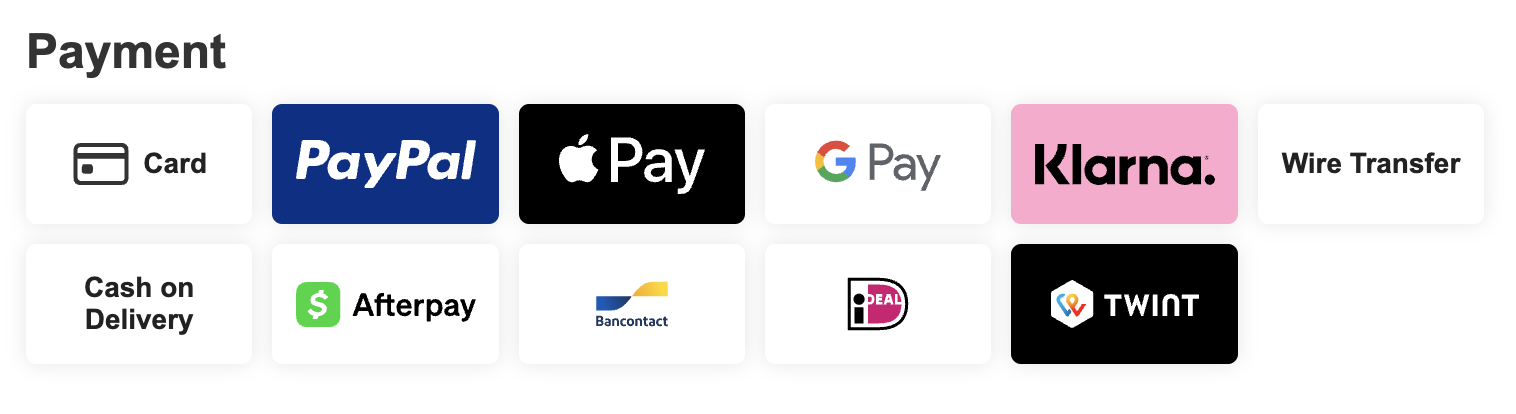
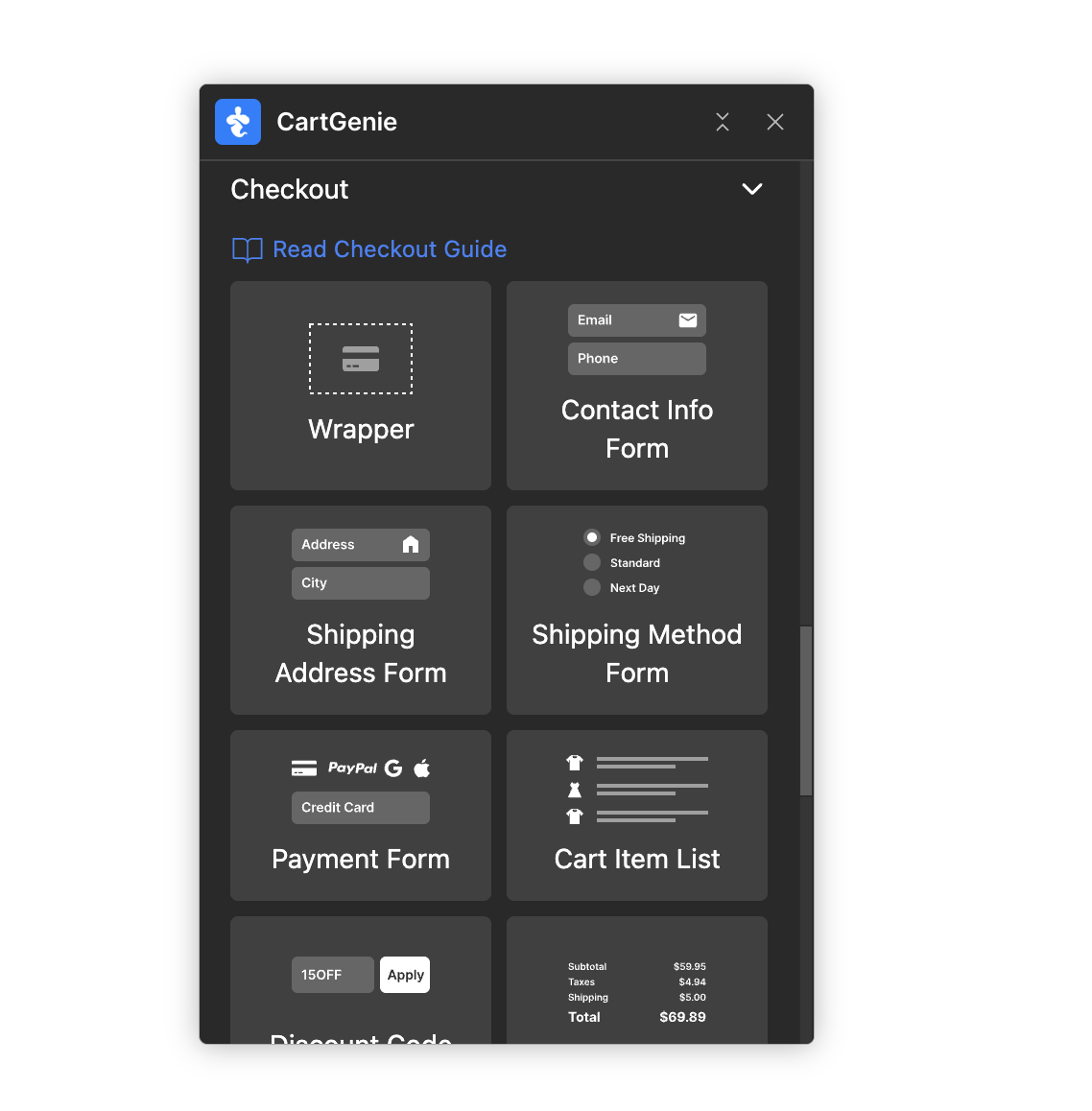
Publish your site and you should see Twint as an option at checkout!
When users select Twint at checkout, they will be redirected to the site to complete their payment.
Store currency must be in CHF
Customer’s address must be in Switzerland
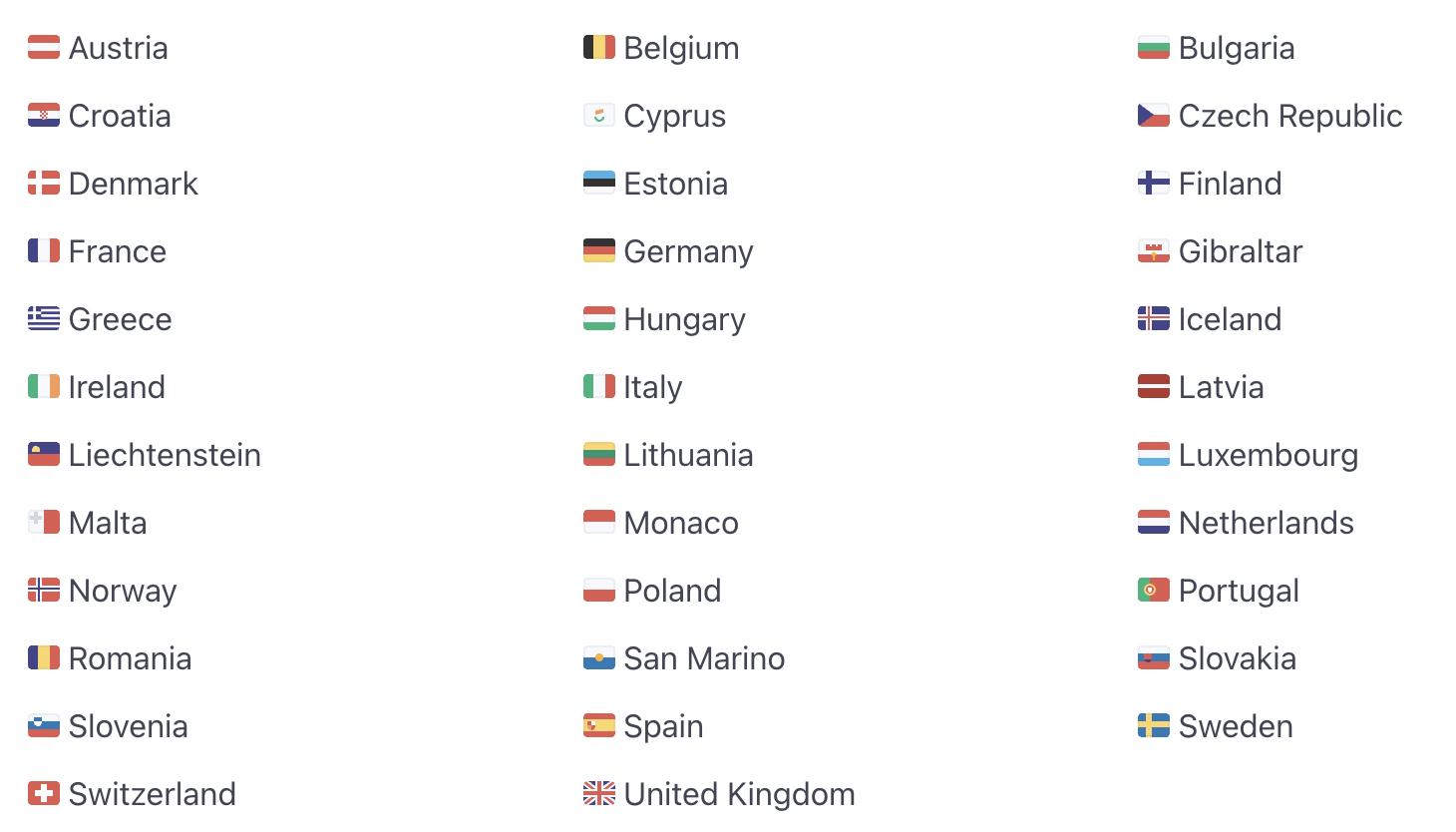
The store’s Stripe account is based in one of the following countries (USA accounts are not supported)
There are a few reasons why you may not be seeing Twint at checkout on your site. Here is a list of steps to try to see if it resolves the issues.
CartGenie’s Test Order Mode only works with credit cards, so all other payment methods are hidden at checkout.
Turn off Test Order Mode in Payment Gateway settings to test a live TWINT payment.

TWINT only supports payments in CHF.
If your store currency is set to USD, EUR, GBP, SEK, DKK, or another non-CHF currency, TWINT will not appear at checkout.
TWINT is a Switzerland-based payment method for customers in Switzerland.
For shippable products, the customer should have a Switzerland shipping address selected at checkout.
For non-shippable products, the customer should have a Switzerland billing address selected at checkout.
For shippable products, customers need to be able to select Switzerland as their shipping country.
If Switzerland is not added as a shipping zone in CartGenie, Swiss customers may not be able to enter a valid Switzerland shipping address and TWINT may not appear.
Add Switzerland as a shipping zone, make sure a valid shipping method is available, then test checkout again.
CartGenie should enable TWINT automatically when you connect your Stripe account and enable the toggle in Payment Gateways, but you can double-check in Stripe.
Go to:
Stripe Dashboard > Settings > Payment methods
Then click Default: CartGenie configuration and look for TWINT in the list.
Make sure TWINT is enabled.
Back in CartGenie Payment Gateway settings, click the refresh icon in the Stripe card to make sure CartGenie recognizes the latest Stripe payment method settings.
TWINT availability depends on the country and eligibility of the connected Stripe account.
If TWINT is not available in the store’s Stripe payment method settings, the connected Stripe account may not be eligible to offer TWINT.
TWINT has a maximum transaction amount of 5,000 CHF.
If the order total is above the allowed limit, TWINT may not appear at checkout.
The order total must be a valid CHF payment amount.
If the order total is invalid, zero, or cannot be processed by Stripe, TWINT may not appear at checkout.
Sometimes your browser may cache payment settings and checkout options from previous page loads, especially if you visited checkout before enabling TWINT.
Try clearing your browser cache, testing in a private/incognito window, or testing in another browser.
You can also delete cookies for only your store site in Chrome here:
chrome://settings/content/allTWINT payments should be tested on a secure HTTPS page.
If the store is loading over HTTP, has SSL issues, or has mixed-content errors, TWINT may not appear or may fail during checkout.
Make sure the checkout page loads with a valid HTTPS URL, then republish the site and test again.
Currently Twint does not work with CartGenie’s subscription products. If you want to allow customers to purchase a subscription, please ensure you have Stripe enabled and the credit card tab available at checkout.