
Monto’s Reviews app automatically adds your reviews to your products’ schema, so they can be displayed on Google Search Results.
But if you want to show reviews in your Google Shopping ads, then you need to do a few extra steps.
Step 1 - Apply For Google Product Ratings
Google has to manually approve review feeds before you can add them to your Google Merchant Center. Before you can apply, you must have at least 50 reviews in Monto.
To initiate this process, you can apply by clicking the button below.
Apply to Add ReviewsHere you’ll find a few questions you need to answer before the form will appear. The 1st answer should be No and the 3rd answer should be Yes.
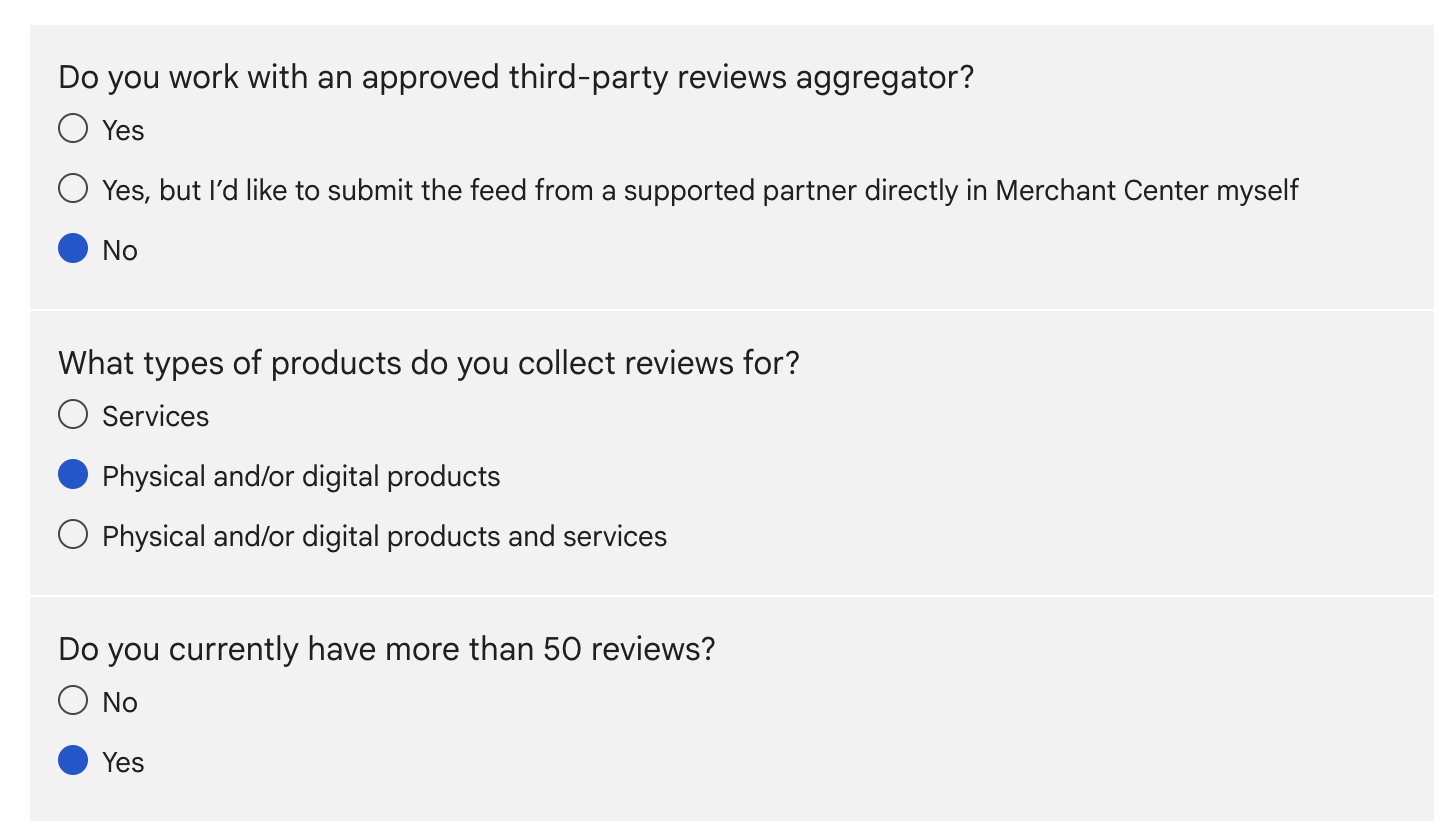

Once you fill out these initial answers, you’ll see a more in-depth form asking for you Merchant account ID, etc. Fill in this form and submit it to Google.
Once approved, you can move on to the next step.
Step 2 - Add Reviews Feed URL to Google
Open CartGenie and go to Settings > Sales Channels.
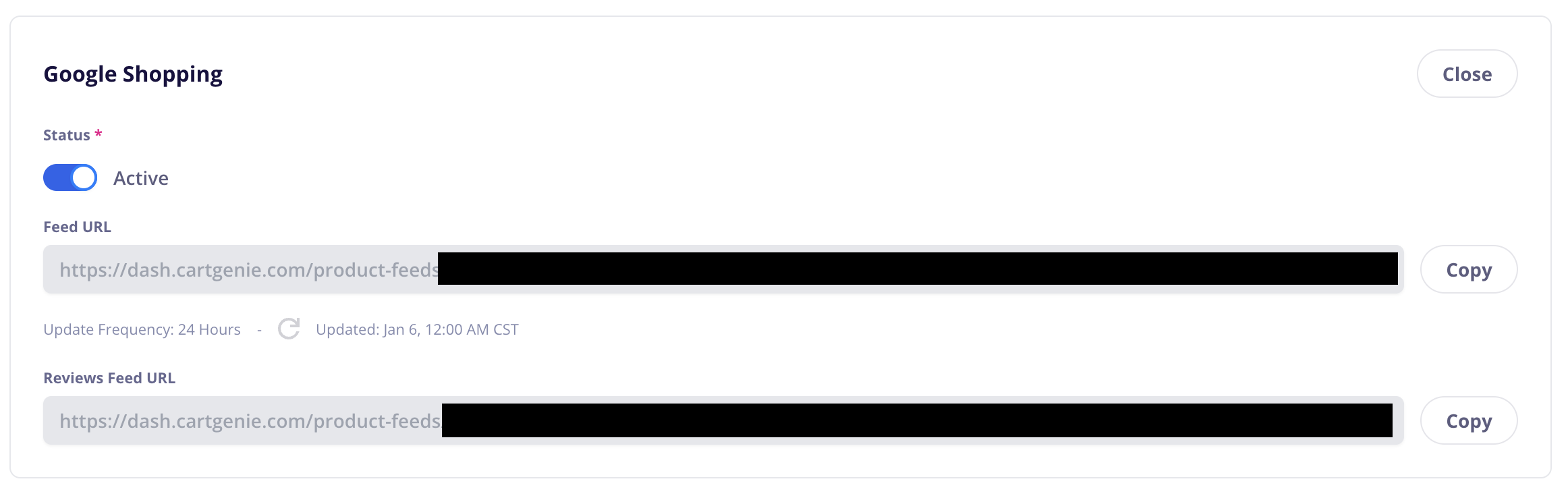
Get My Reviews Feed URLOpen the Google Shopping panel and copy the Reviews Feed URL.
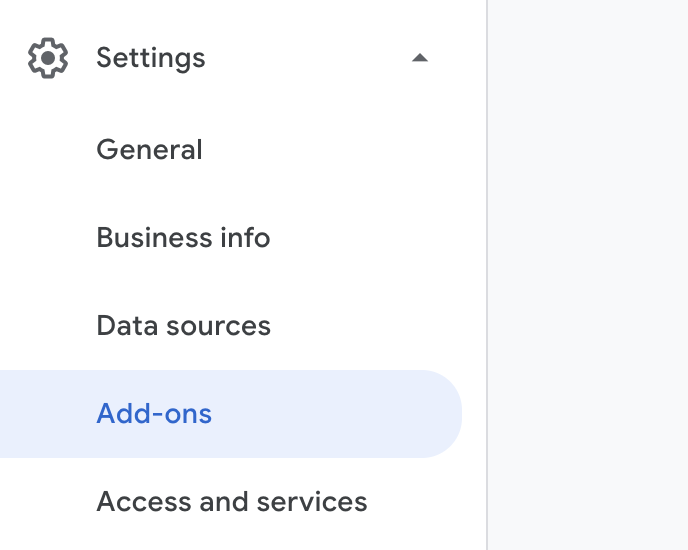
Go to your Google Merchant Center and open the Settings > Add-Ons > Product Ratings.
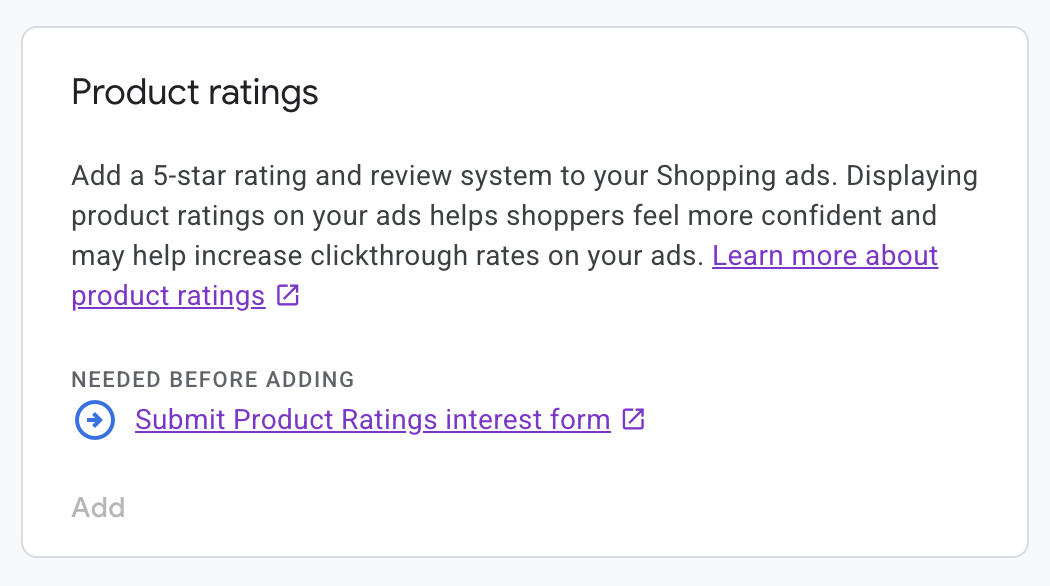
If you see the message above saying you need to submit the product ratings interest form, it means you haven’t completed step 1.
Once approved, you can enter your CartGenie Reviews Feed URL into Google and they’ll add to your product feed.