If you receive an email from PayPal saying a customer has “authorized a payment to you”, but you don’t see an order in CartGenie, this usually means the customer started checkout with PayPal Express but didn’t finish it on your store.
This is normal behavior with PayPal’s Express Checkout flow (the set of buttons at the top of checkout). This does not happen with the standard Paypal flow if the customer selects the PayPal button further down the page in the payment section.
Here’s what’s happening behind the scenes.
When a shopper uses the PayPal Express button, the flow works like this:
The customer signs in to PayPal
They click “Review Order” inside PayPal
This step authorizes the payment and is what triggers PayPal’s email to you
They’re sent back to your CartGenie checkout page, where they must enter their phone number
They must click “Complete Checkout” on your site
Only after step 4 is completed does CartGenie create the order.
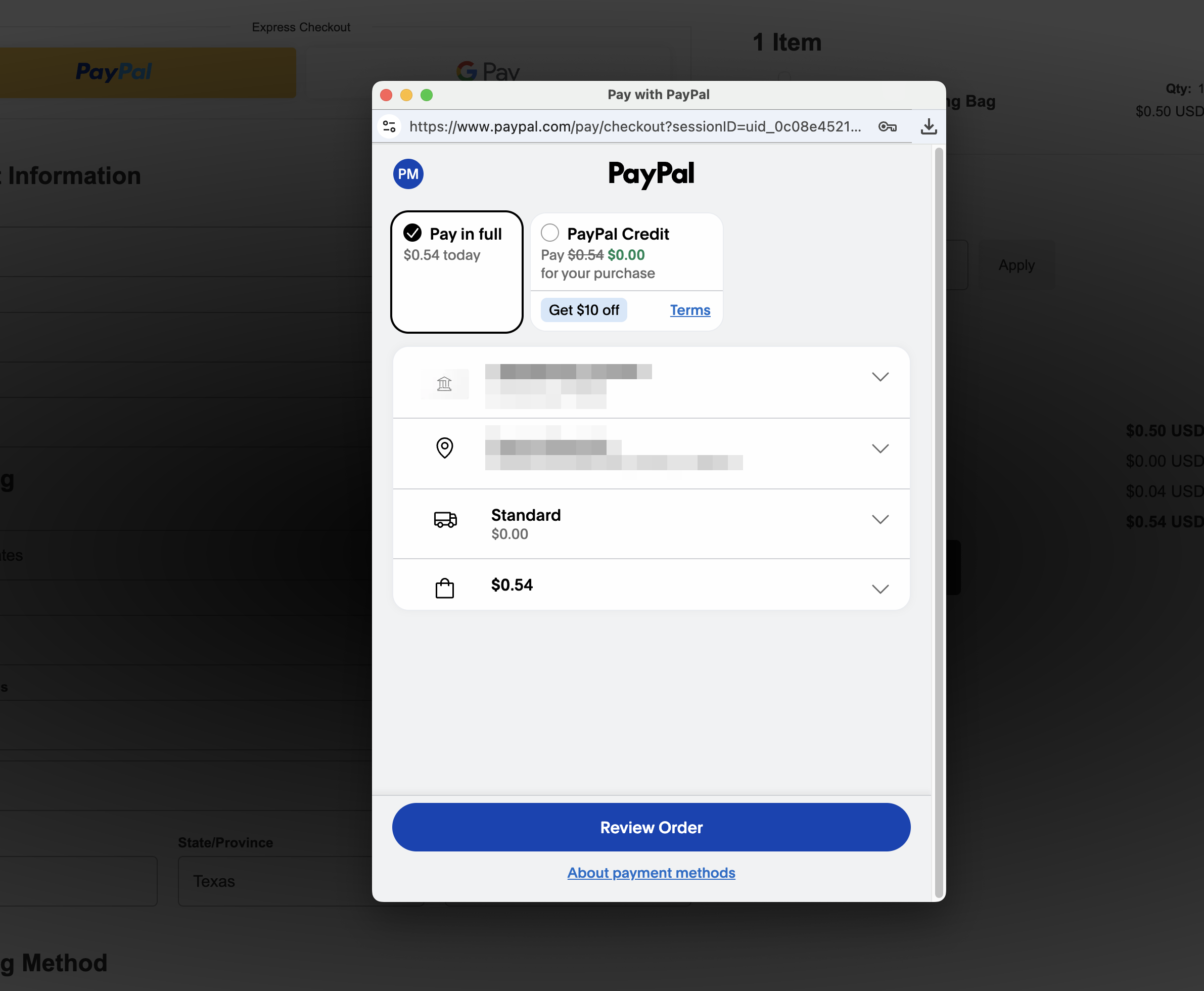
If the customer stops after step 2:
No order is created in CartGenie
The customer has not fully completed their purchase
They may have changed their mind
Or they may have simply closed the browser or thought they were done
In PayPal, this appears as a Pending authorization.
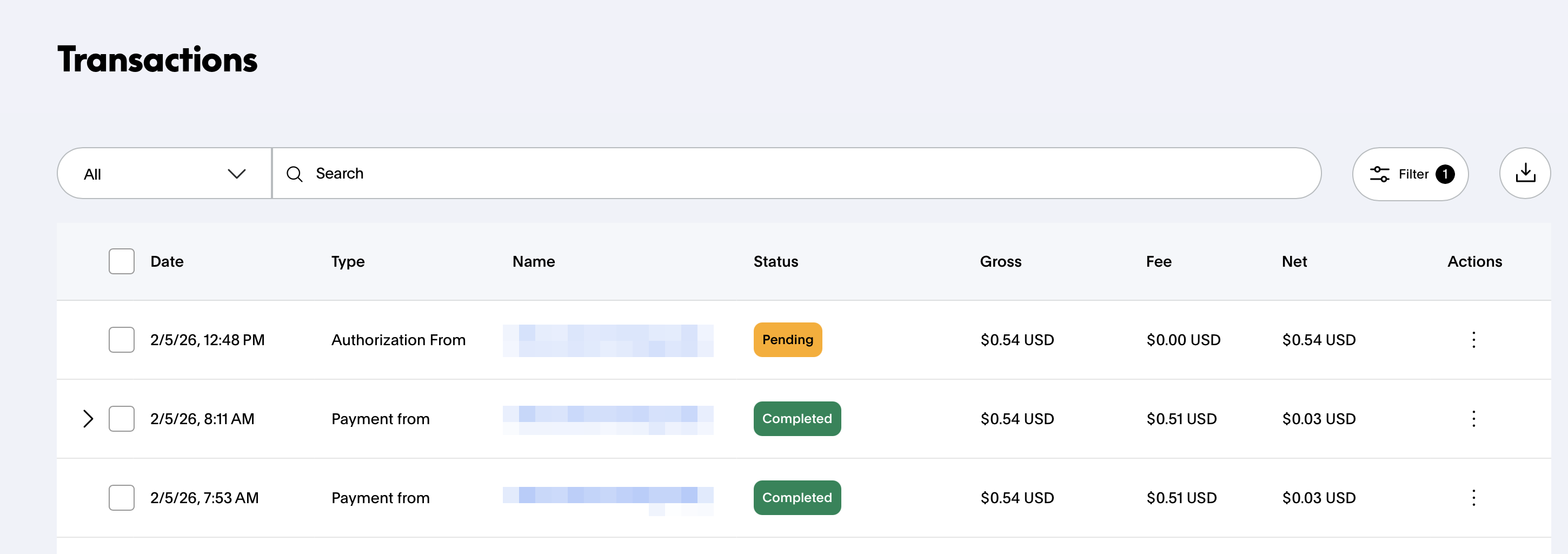
At this stage:
No money has moved into your account
PayPal is just holding the authorization
After ~30 days, the authorization automatically expires if nothing happens
Paypal will give you the option to manually “capture” the payment, which transfers the funds to your account. However, this will not create an order in CartGenie since it was not completed through our checkout page.

While PayPal allows you to manually capture the payment, doing so can cause problems:
The order won’t exist in CartGenie
Inventory, fulfillment, and customer data won’t be recorded
The customer may have intentionally abandoned the checkout, yet your store has now taken their funds
Capturing manually essentially creates an “orphan” payment with no matching order.
Instead of capturing the payment:
✅ Reach out to the customer
✅ Ask them to return to your store and complete checkout – either through Paypal or another payment method.
✅ If they use Paypal Express again, be sure they complete the transaction by clicking “Complete Checkout” on the checkout page after they authorize in Paypal.
Once they do, the order will appear normally and payment will be captured automatically as part of the completed transaction.

This flow is only used in Paypal’s Express payment method.
If you find that too many customers are getting confused and are not completing their order, we recommend simply removing the Paypal button from the Express Payment section in your Checkout page.
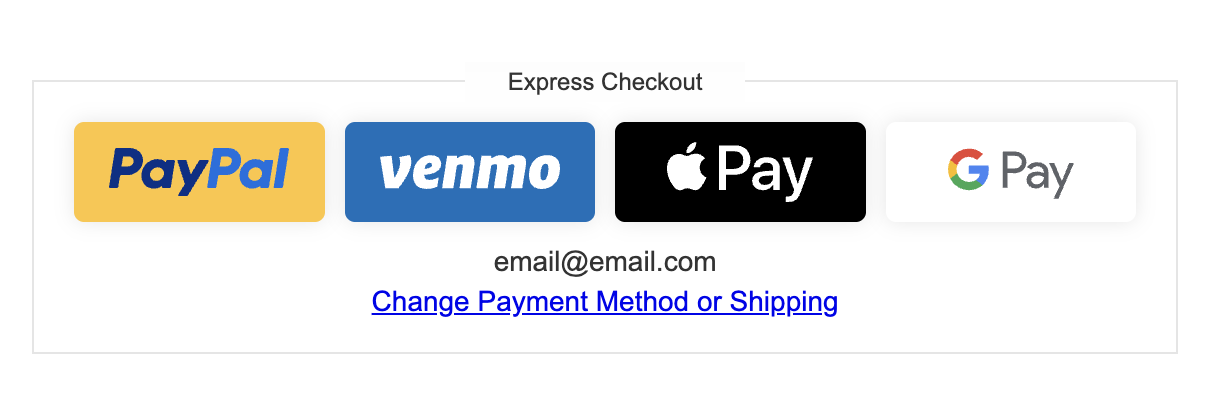
The standard Paypal option in the Payments section of your Checkout page does not have this extra step and therefore should not cause any customer confusion. We recommend leaving this payment option in place.