
Depending on your store, SKUs can be useful not only for internal reference, but for customers as well. CartGenie makes it easy to add this info to your store pages so your customers can easily identify each product.
Designer Extension Method
To display the SKU of your product and its selected variant, go to Webflow and open the CartGenie designer extension app.
Navigate to Create Product Pages > Components > Product Page and select the SKU component. Paste it in your product, cart, checkout, or confirmation pages where you want it to show up.

Then, click the small gear icon of the text block and connect it to the SKU field.
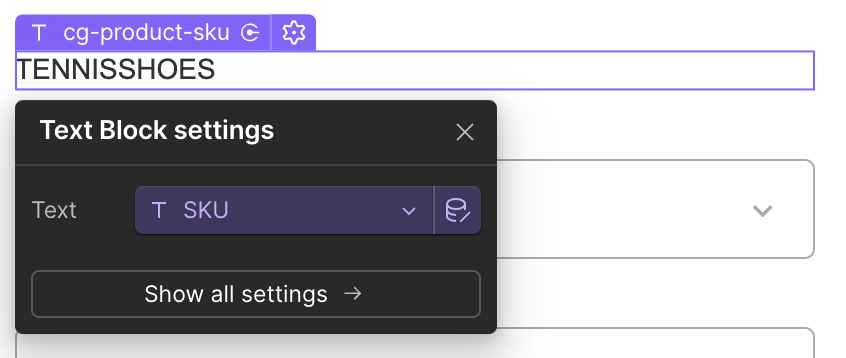
This ensures that when the page loads, it will be showing the product’s SKU and not the placeholder text.

Manual Method
You can add this functionality to any block by simply adding a custom attribute.
Name:
data-cg-product-skuValue:
1