Partial Fulfillment allows you to ship and fulfill only some of the items in an order while leaving the remaining items unfulfilled. This is useful when certain products are out of stock, on pre-order, backordered, or being shipped from a different location.
With CartGenie, you can fulfill available items immediately and return later to fulfill the remaining items once they become available, while keeping the entire order organized in a single place.
In CartGenie Settings > Communications page, edit the Order Shipped (Partial) email.
Edit Partial Fulfillment EmailThis email will be sent to your customers when an order is partially fulfilled. It notifies the customer which items have been shipped and the tracking number for the shipment (if entered).

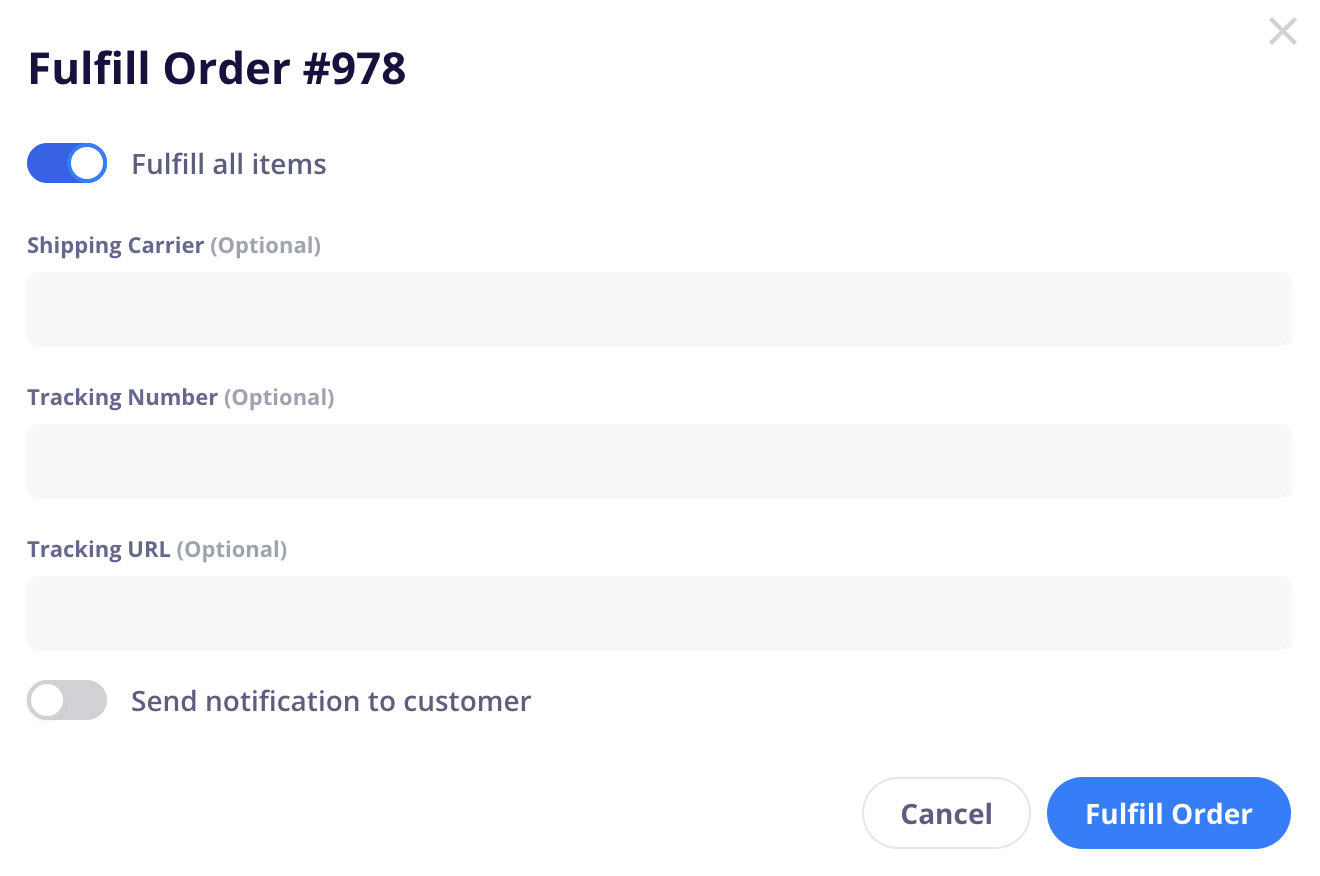
Click the Fulfill Order button in the order you want to partially fulfill.
In the fulfillment popup, there is a Fulfill All Items toggle. Enabling this (default) will mark all items in the order as fulfilled in a single shipment
If you disable the Fulfill all items toggle, you can select which items in the order you want to fulfill now. Click the checkmark or enter the quantity of each you are packing with this shipment.
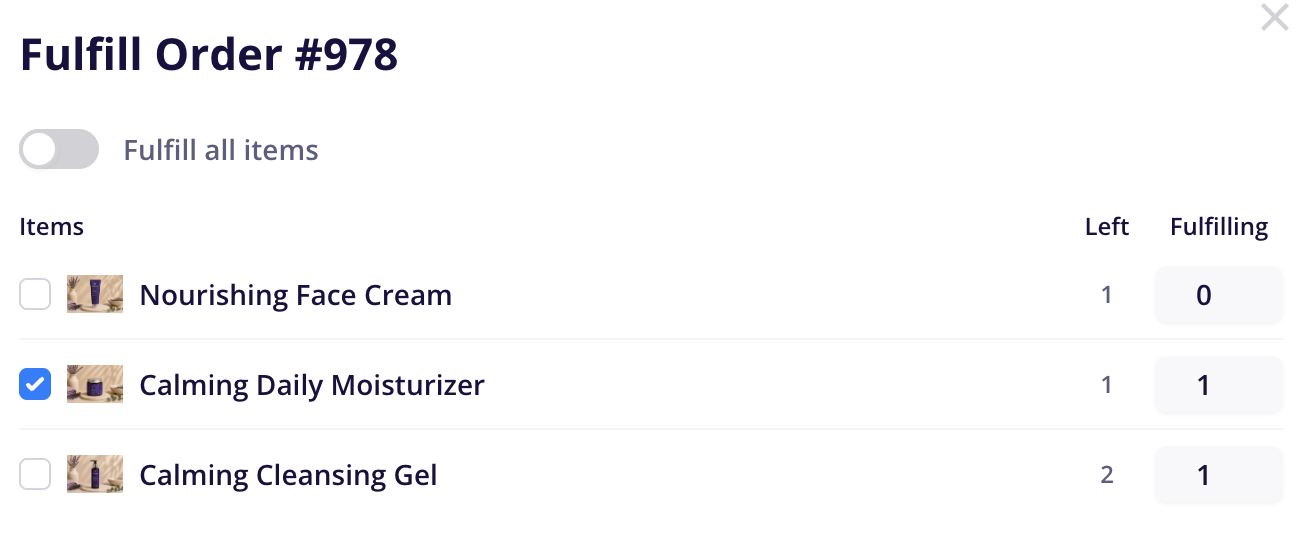
Example: Here we are shipping out 1 (of 1 total) of the moisturizer and 1 (of 2 total) of the gel.
Left: The quantity of this product which has not yet been fulfilled
Fulfilling: The quantity of this product you are fulfilling in the current shipment
Once you’ve made your selections, then click the Fulfill Order button.
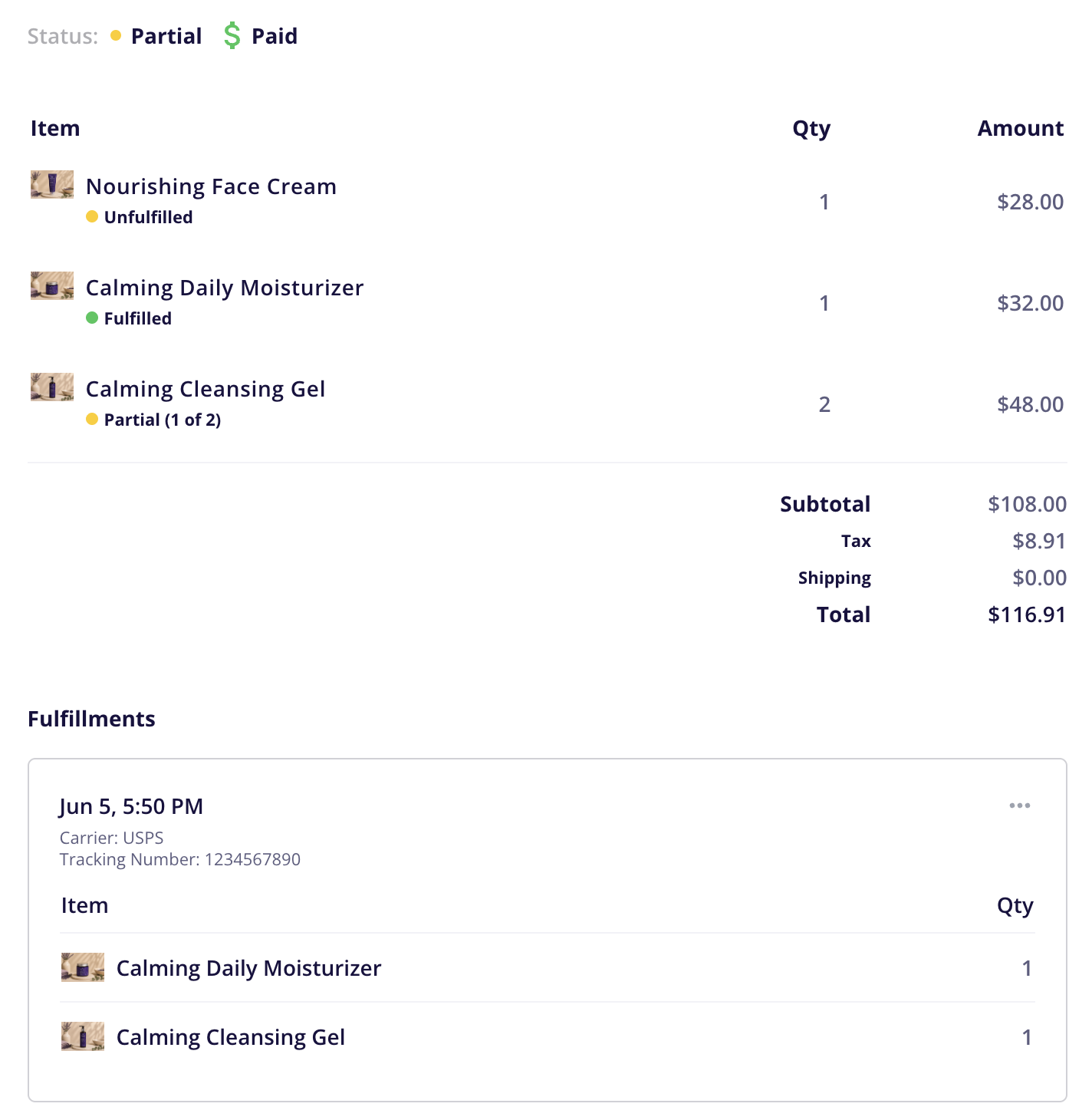
You will now notice a few new elements in your order:
Order Status
The order status has changed to “Partial”
You can filter your order list page by partial orders. Partial orders will also appear in “Unfulfilled” filters
Item Status
Each item will now have its own status of Unfulfilled, Fulfilled, or Partial (if only part of the item quantity was shipped)
Fulfillments
Each fulfillment is listed as a separate box on the order detail page and includes the items shipped with it and the tracking information
Clicking the 3 dots in the top right of the box allows you to:
Edit tracking information
Print packing slip containing only those items
Resend partial fulfillment shipping confirmation email containing only those items
Mark Unfulfilled: This reverts the items back to unfulfilled status and removes the fulfillment box
When the rest of the items are ready to ship, you can come back into this order and click the Fulfill Order button again to ship the rest of the items as a separate fulfillment!