GenieScan is CartGenie’s AI-powered store health checker that scans your Webflow site for common setup issues that can prevent your store from functioning correctly.
To run a scan, navigate to:
Settings → Webflow Settings → GenieScan Health Checker → Scan My Site
Open GenieScanGenieScan analyzes your live Webflow site and checks that all required CartGenie components are properly connected and configured.
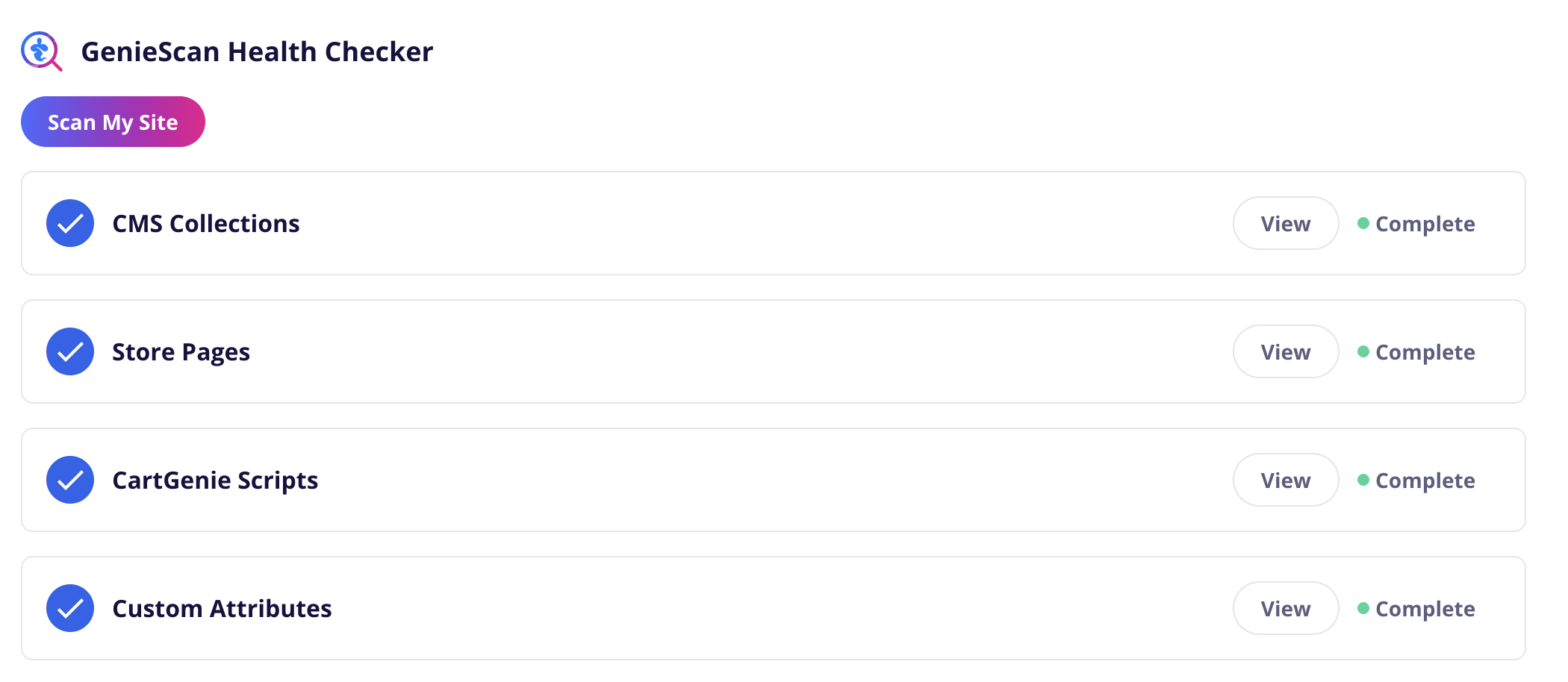


An Incomplete status means the section has not been scanned yet. Run GenieScan to verify that everything is configured correctly.

A green checkmark and Complete status indicate that GenieScan successfully verified the area and no issues were found.

An Error status means GenieScan detected one or more issues that require attention.
When any errors are found, you’ll also see a pink notification dot next to Webflow Settings in the Settings menu.
GenieScan verifies that your CartGenie store is connected to the required Webflow CMS collections and that all necessary custom fields exist within those collections.
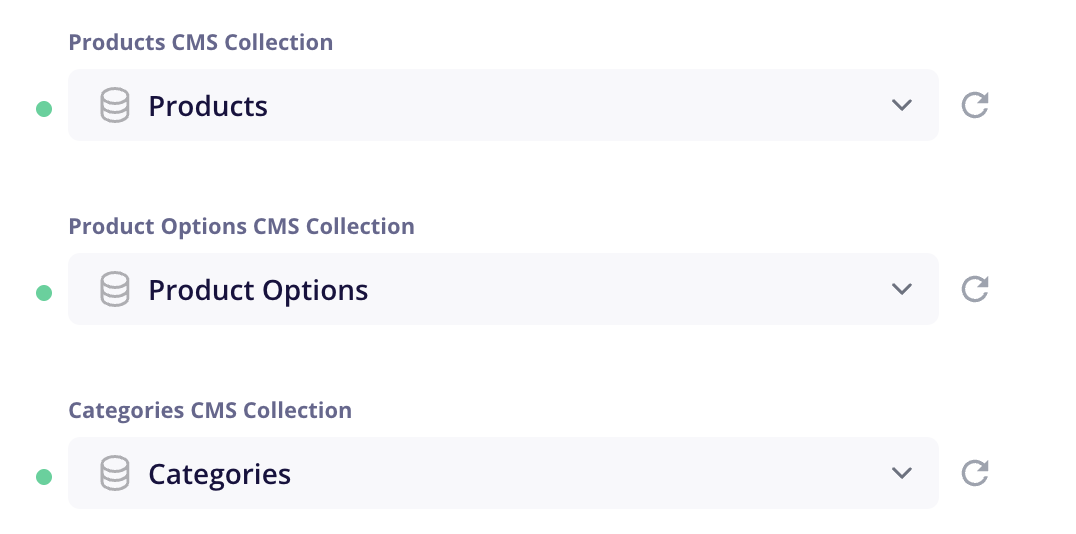
This includes:
Products collection
Categories collection
Product Options collection
Required CartGenie custom fields within each collection
If any collections are missing or required fields have been deleted, GenieScan will identify the issue and provide instructions to fix it.
GenieScan verifies that your store is connected to the required Webflow pages used by CartGenie.
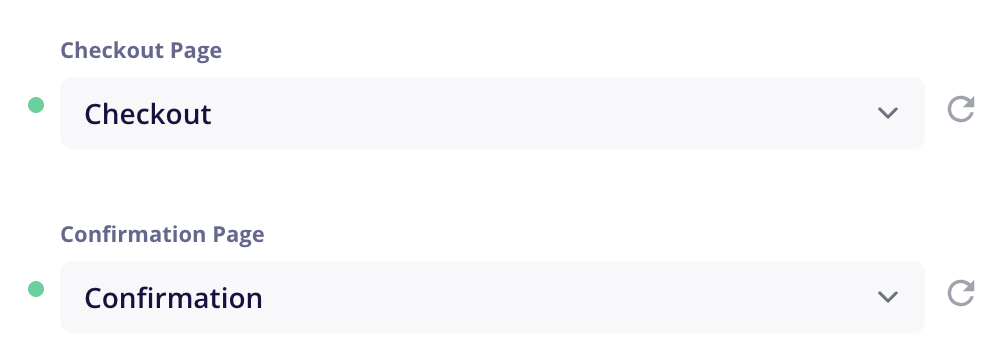
This includes:
Checkout page
Confirmation page
If either page is missing, disconnected, or incorrectly configured, GenieScan will flag the issue.
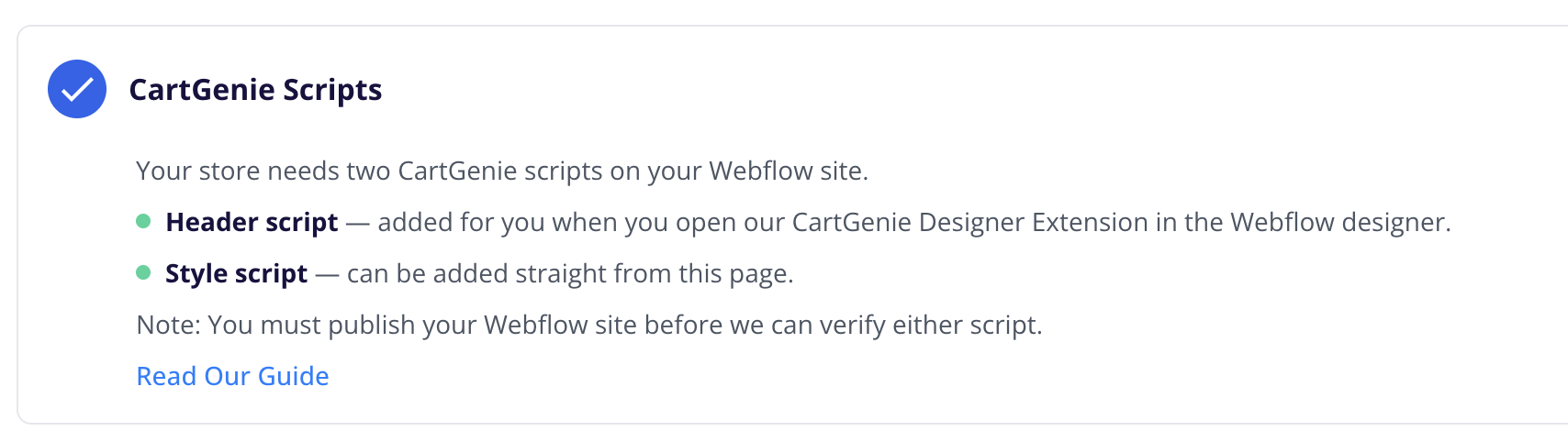
GenieScan checks that your Webflow site contains the required CartGenie scripts needed for store functionality.
This includes verification that both required CartGenie scripts are installed and accessible on your site.
If a script is missing or configured incorrectly, GenieScan will identify the problem and explain how to correct it – typically displaying a button to fix the issue easily.
GenieScan scans key store pages to ensure that all required CartGenie custom attributes have been added correctly.
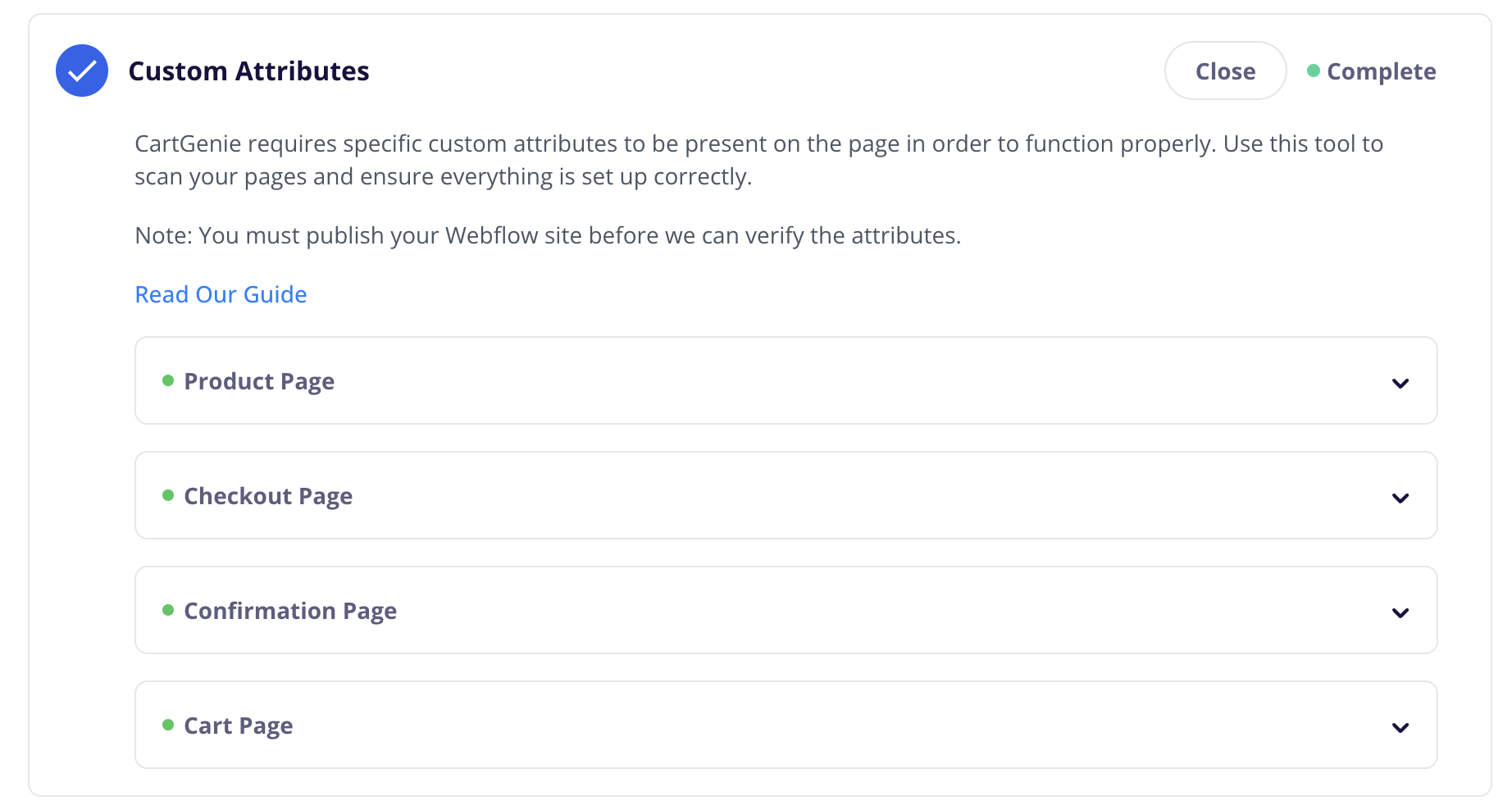
Pages checked include:
Product pages
Checkout page
Confirmation page
Cart components
Missing or incorrectly configured custom attributes can prevent important store functionality from working properly. GenieScan will identify any issues and provide guidance for resolving them.
Each time GenieScan runs, a detailed scan log is created and displayed below the scanner.
The scan log includes:
Issues that were detected
The affected area of your store
Step-by-step instructions for resolving the issue
Additional troubleshooting information when available
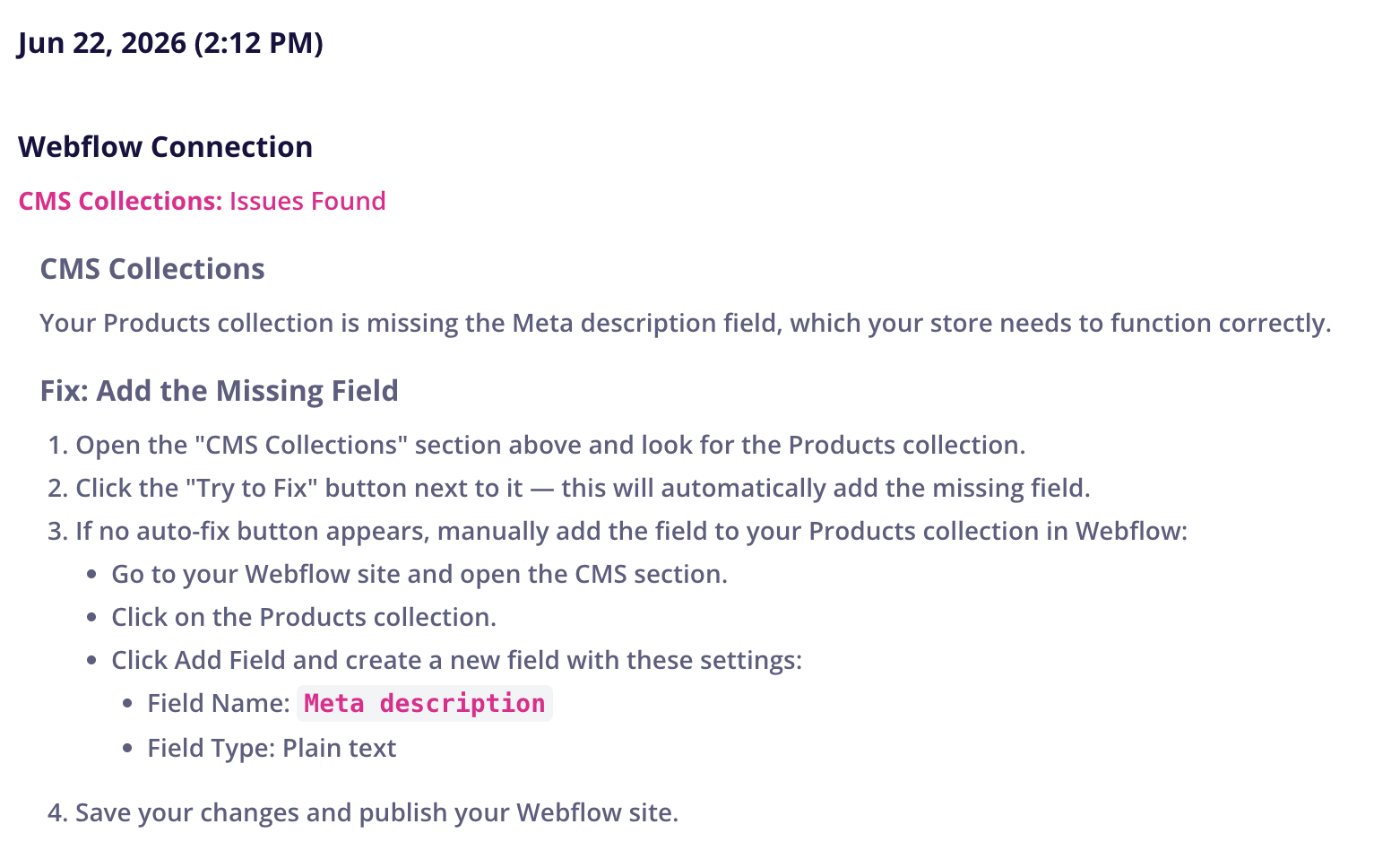
These instructions are generated using AI and are generally very accurate. However, if something appears incorrect or you are unsure how to proceed, please contact the CartGenie team for assistance.
Our team also has access to your GenieScan logs and can help review any reported issues.
Once you’ve completed the recommended fixes:
Publish your Webflow site.
Return to Settings → Webflow Settings.
Click Scan My Site again.
Verify that all sections now display a Complete status.
Running GenieScan periodically is a great way to catch configuration issues early and ensure your CartGenie store continues to operate smoothly.