By default, CartGenie treats your product prices as tax-exclusive — you enter $100, and tax is added on top at checkout (typical in USA).
But in many parts of the world, that's not how prices are shown. Across the EU, the UK, Australia, New Zealand, and much of Asia, consumer-facing prices are legally required (or simply expected) to be tax-inclusive — the price on the shelf is the price you pay, with VAT or GST already baked in.
CartGenie supports this through two settings, found under Tax-Inclusive Pricing in your tax settings.
Go to Tax Settings

Turn this on when the prices you've entered in CartGenie already contain tax.
Instead of adding tax on top, CartGenie works backwards and pulls the tax out of the price you entered:
Tax = (tax rate × price) / (1 + tax rate)The customer always pays the price you entered. What changes from country to country is how that price splits between your revenue and the tax you owe.
You enter a product price of $100 in CartGenie.
Customer Country | Tax rate | Your revenue (net) | Tax | Customer pays |
Country A | 20% | $83.33 | $16.67 | $100.00 |
Country B | 25% | $80.00 | $20.00 | $100.00 |
Country C | 0% | $100.00 | $0.00 | $100.00 |
Everyone pays $100. Clean, predictable pricing — but notice your actual revenue drops as the tax rate climbs. A sale into a 25% country earns you $20 less than the same sale into a 0% country.
That's where the second setting comes in.
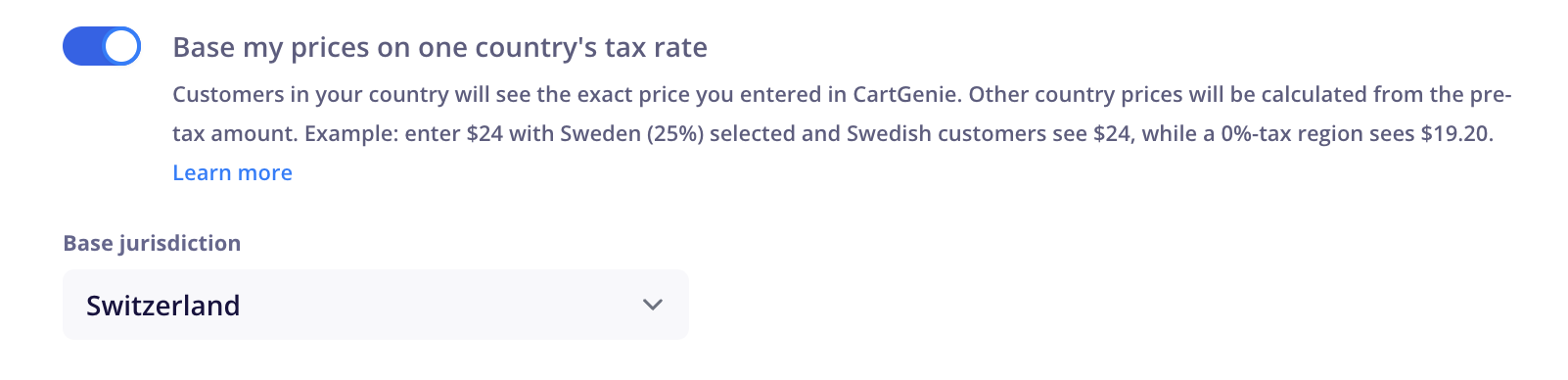
This setting appears once tax-inclusive pricing is enabled.
You must select a Base Jurisdiction to base your prices on.
It solves a specific problem: you want a round, attractive price in your home market, without giving up revenue on every sale to a lower-tax country.
You choose the country your prices are based on. CartGenie then treats the price you entered as the final price in that country, calculates the pre-tax amount once, and applies each other country's own tax rate to that same pre-tax amount.
In short:
Your chosen country sees exactly the price you entered.
Everywhere else is calculated up or down from the pre-tax amount.
You enter the same product price of $100 in CartGenie.
This time you select Country B (25%) as your base.
CartGenie calculates the pre-tax amount once: $100 ÷ 1.25 = $80.00
Customer’s Country | Tax rate | Your revenue (net) | Tax | Customer pays |
Country B (your base) | 25% | $80.00 | $20.00 | $100.00 |
Country A | 20% | $80.00 | $16.00 | $96.00 |
Country C | 0% | $80.00 | $0.00 | $80.00 |
Your revenue is now $80.00 on every sale, no matter where the customer is. Your home price stays a clean $100. Customers in lower-tax countries simply pay less, because they owe less tax.
Because prices now differ by country, showing the same price to everyone would be misleading — a customer would see one price on your product page and a different one at checkout after they select their country.
To avoid this, when this setting is enabled, CartGenie uses your customer's IP address to estimate their country and show the price they're most likely to pay. This applies across your homepage, product pages, and cart.
Prices then update to the final, accurate amount once the customer selects a shipping country at checkout — or a billing country, if the product isn't shippable.
Leave the base setting off if you want a single global price and don't mind absorbing the difference in tax rates. This is common for digital products and brands that advertise one worldwide price.
Turn the base setting on if you sell mainly into one market and want that market's prices to look right, while protecting your margin on sales elsewhere.
Tax is based on where the order is going:
Shipping country: when there is one
Billing country: if the order has no shipping address (such as a digital product)