Since 19 June 2026, businesses that make distance contracts through an online interface—such as a website or app—must provide an easy-to-find withdrawal function for contracts where a consumer has a right of withdrawal.
The function must let the customer submit a withdrawal statement online, identify the relevant order or contract, and provide an email address for confirmation. This requirement makes it easier for customers to exercise an existing right of withdrawal; it does not create a withdrawal right for every order.
In many consumer sales, the withdrawal period is 14 days, but eligibility, deadlines, and exceptions can vary by product, service, country, and applicable local law.
Read the official EU directive
This is relevant if you sell online to consumers in the European Union and the order is eligible for a legal right of withdrawal. It generally concerns business-to-consumer distance sales, rather than sales to other businesses.
Your shop remains responsible for understanding and complying with the rules that apply to your business, products, customers, and the countries you sell to. We recommend seeking legal advice if you are unsure about your obligations.
CartGenie’s Withdraw Order form gives customers a simple way to send a withdrawal request from your website.
It is a native Webflow form that you can place anywhere on your site using the CartGenie Designer Extension component.
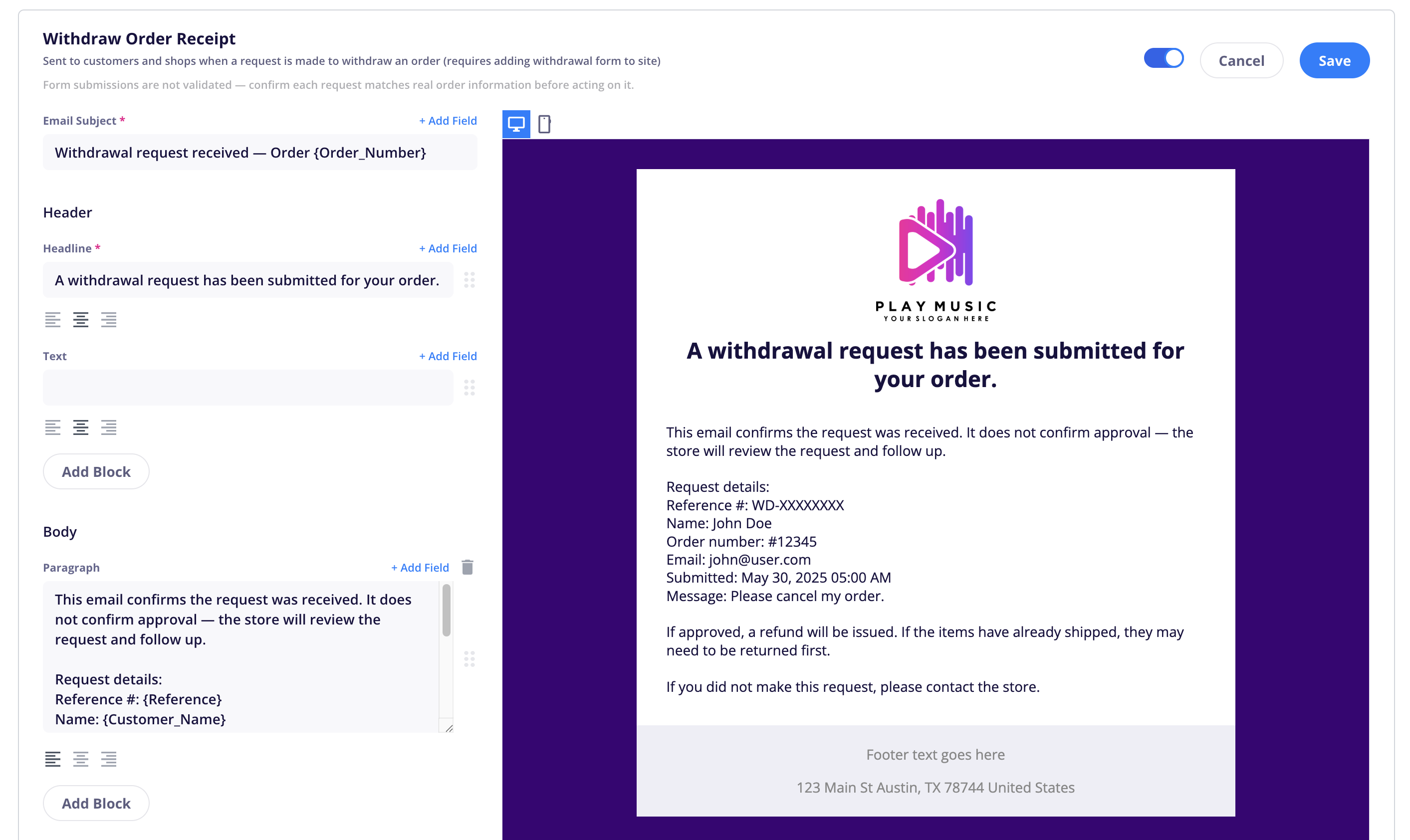
It uses a new customizable Communications email in your CartGenie settings to send the request to both the customer and your shop.
Sending a form does not change an order status, issue a refund, cancel an order, or take any other action in CartGenie.
You must review and process the request manually.
Your shop is responsible for confirming that the details submitted match the customer’s order, checking whether the order is still eligible for withdrawal under applicable local laws, and completing any required follow-up action.
In Webflow, open the CartGenie designer extension and go to:
Create Product Pages > Components > Misc.
Click on the Withdrawal Order Form EU component and paste it into your site. We suggest adding to a new interior page (/withdraw) and link to it in your footer – or anywhere else you prefer.
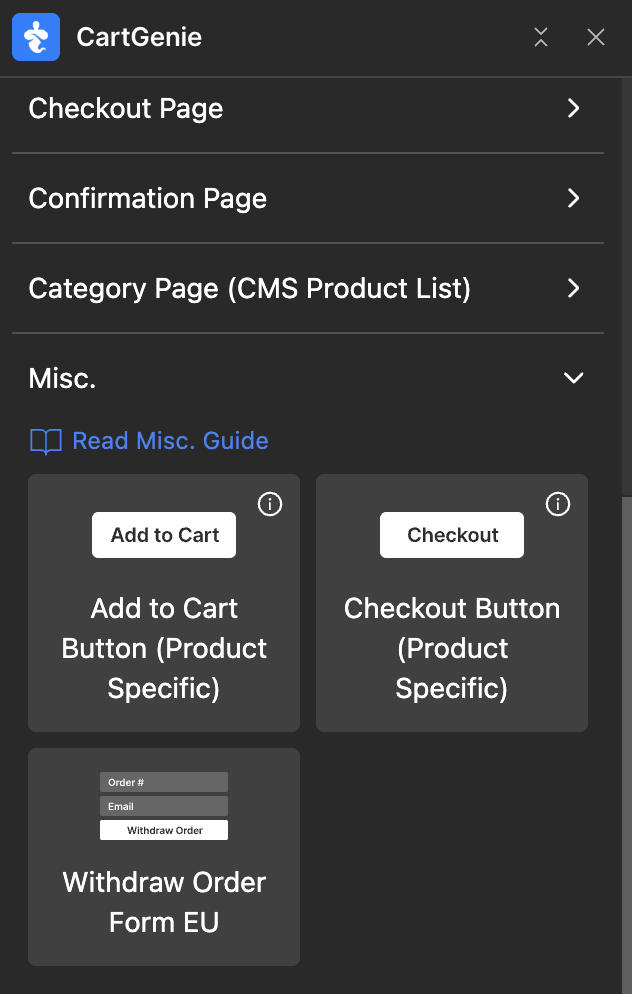
The pasted form will look like this:
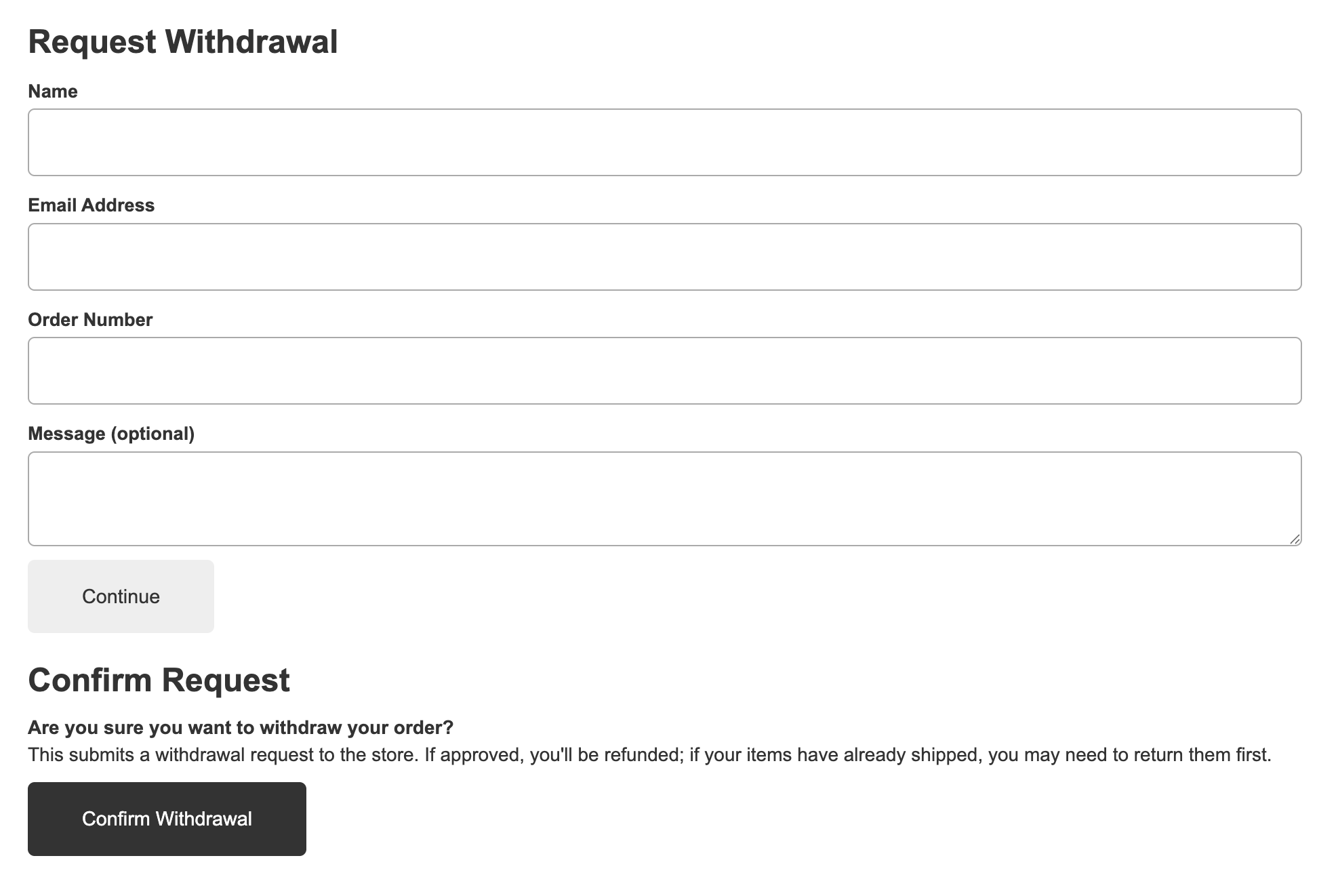

Few things to note:
By law, the form must have two stages
The form has an invisible “divider” after the Continue button. Only this portion will be displayed on page load until the user fills in the fields and clicks “Continue”
You can edit the text labels and buttons and also translate it into your preferred language
If you want to edit the text displayed to the customer after the form is submitted, you can do so by clicking the form and clicking on the “Success” button in the Webflow form settings panel.
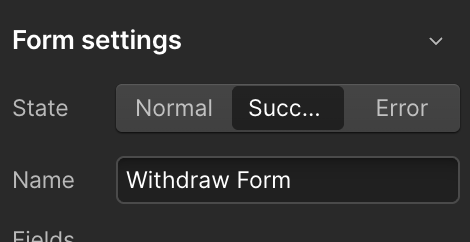
Here is the default success state:
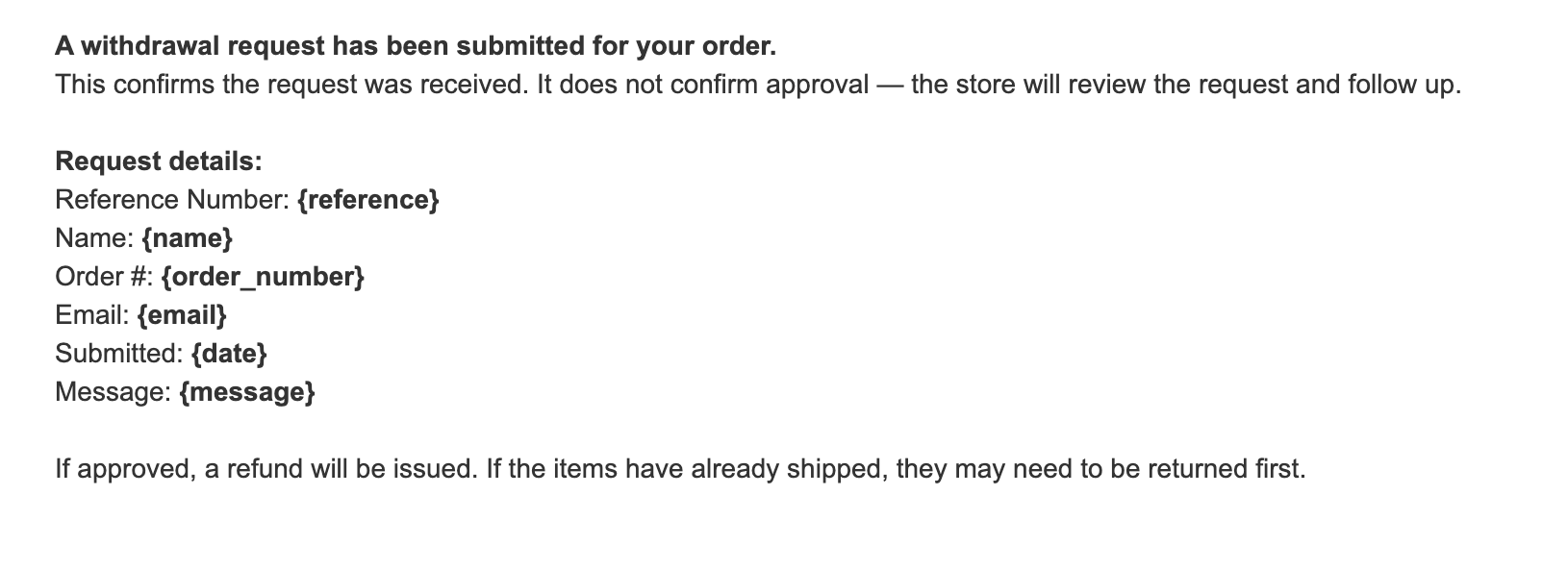
A random reference number is assigned to each withdrawal request and will be sent to your email. It can be used to refer to each request internally and to the customer.

By default, all withdrawal form requests submitted through CartGenie’s form will be sent to:
The CartGenie account owner
The CartGenie account admins
The customer who submitted the request
Webflow form submissions
Webflow email notification
You can edit the delivery (and email) of the first 3 in CartGenie Settings > Communications (see below).
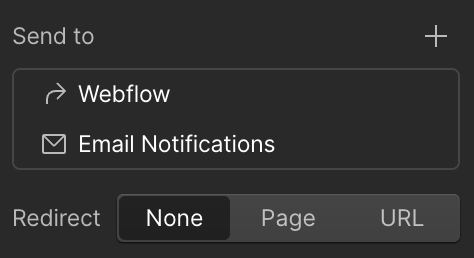
We recommend keeping the Webflow form submission enabled as a backup in case any webhooks on your site get broken.
Feel free to disable the Webflow email notification by clicking on the form in Webflow and deleting the “Email notifications” line under the form’s “Send to” settings.
In CartGenie Settings > Communications tab, you will now see a new email called “Withdrawal Order Form”
Be sure to enable the toggle (blue) so that the email will be sent when the form is filled out.

Clicking the “Edit” button will allow you to open up the email and change the wording, change who it is sent to, add additional email addresses as desired, etc.