This guide shows you how to connect Claude (the AI assistant from Anthropic) to a Webflow website, so you can work on your site just by chatting. Once connected, you can ask Claude to update CMS content, create pages, adjust styles, and more — and Claude will do it directly in your site.
No coding is required. The whole setup takes about 10 minutes.

A Claude account on a paid plan (Pro, Max, or Team), using either the Claude desktop app, claude.ai in your browser, or Claude Code.
A Webflow account with access to the site you want to connect. You’ll need permission to authorize apps for that site (site admins have this).
Optional but smart: create a backup of your site first (in Webflow: Site Settings → Backups) so any change can be undone.

These steps are for the Claude desktop app or claude.ai (the easiest path for most people). Using Claude Code instead? See the alternative in Step 1b below.
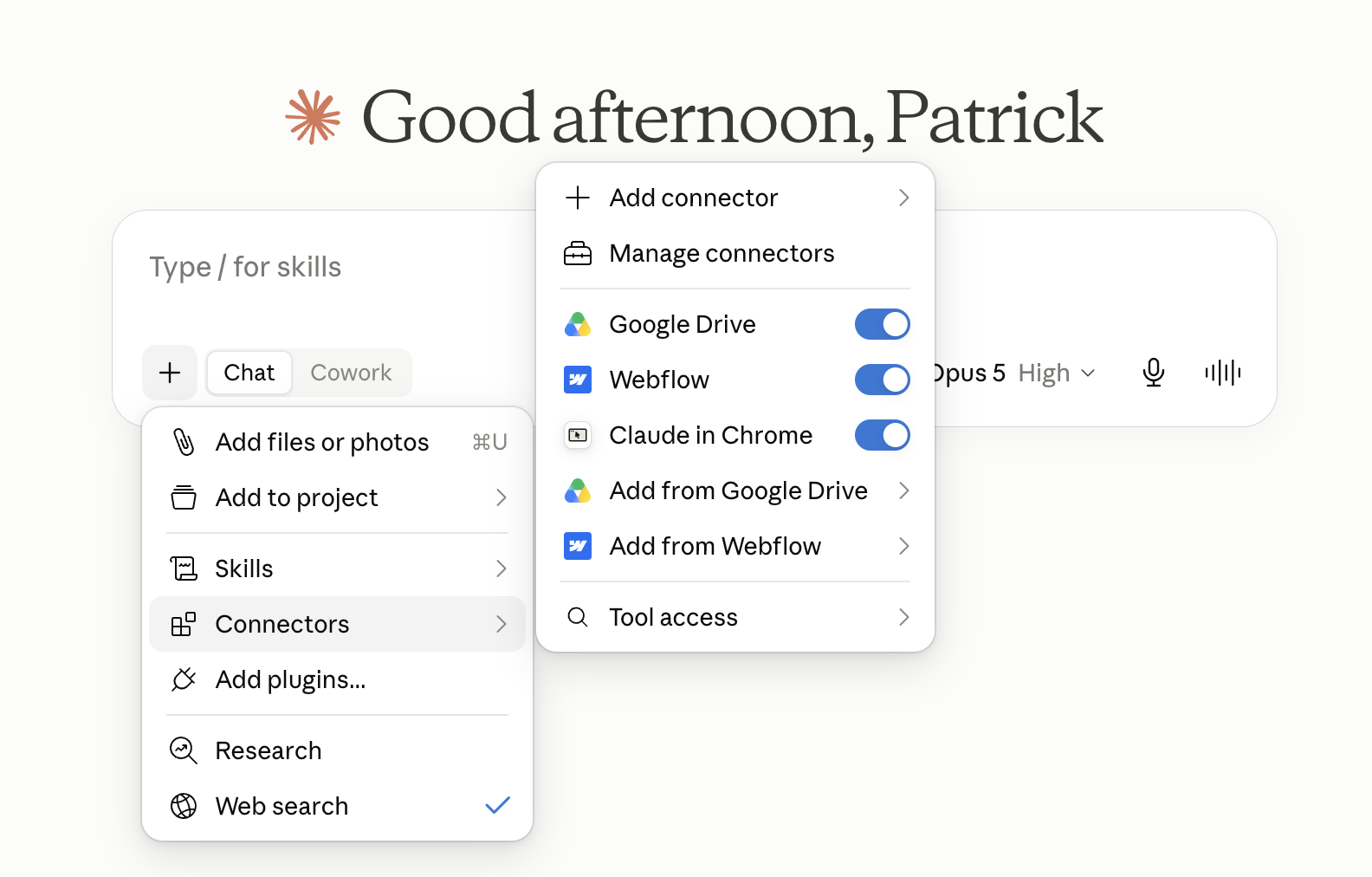
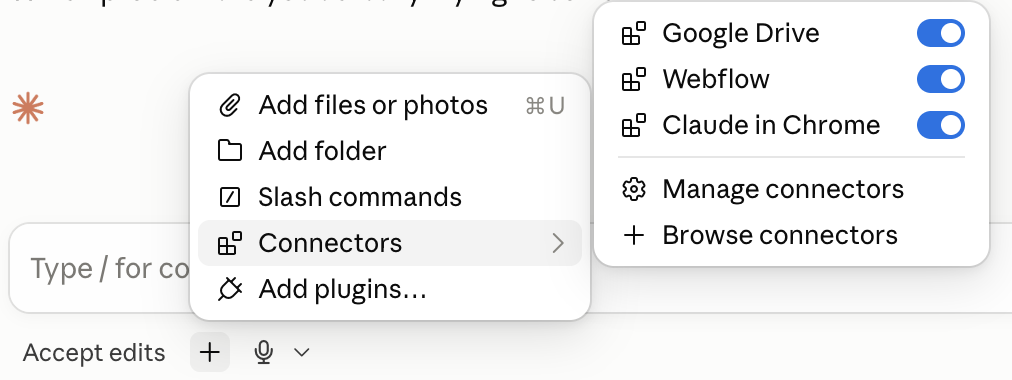
Click the + Icon in the bottom of a chat and under Connectors, click Add Connector and search for Webflow.
Step 1 done!
—
You can also add connectors by going to your profile / settings icon, then choose Settings. Go to the Connectors section. Click Add custom connector. Enter a name, e.g. Webflow, and paste this as the server URL: https://mcp.webflow.com/mcp
Click Add. Claude will now show Webflow in your connector list.
If you use Claude Code (the command-line/desktop coding tool), run this one command in your project folder instead:
claude mcp add --transport http webflow https://mcp.webflow.com/mcp
Then restart Claude Code (or start a new session) so the Webflow tools load.
The first time Claude uses the connector, Webflow asks for your permission:
A Webflow login/authorization window opens in your browser. Log in to Webflow if prompted.
Webflow shows an authorization screen. Choose the workspace and select the site(s) you want Claude to access. Tip: grant only the site you plan to work on.
Click Authorize. You’ll be returned to Claude, and the connection is live.
Start a new conversation in Claude (new chats pick up new connectors reliably).
Type: “List my Webflow sites”.
Approve the tool permission if Claude asks. You should see your site’s name come back. That’s it — you’re connected!
A few starter prompts to try:
“List the CMS collections on my site and how many items each has.”
“Add a new blog post titled ‘Summer Sale’ with a short draft body.”
“What pages does my site have, and which are missing SEO descriptions?”
“Create a new About Us page on my site matching my site theme”
“Change the button color across the site to #A5C926.”
“Publish the site to the webflow.io staging domain.”
Claude can read your site’s structure, edit CMS content, build and style pages, upload images, and publish. A few things still require the Webflow Designer (like animations and some link/visibility settings) — Claude will tell you when something needs your hands.
Transferring a Webflow Ecommerce Site to a Blank CMS Site via the MCP:
Using Webflow's MCP to transfer a Webflow Ecommerce site to a new blank CMS site
Converting your site to a new blank CMS site allows you to add CartGenie and retain your original product URLs and product & collection names
Problem | Fix |
Claude says it has no Webflow tools | Start a new conversation, or fully restart the Claude app / Claude Code. Connectors load when a session starts. |
The Webflow authorization window never appeared | In Claude’s Settings → Connectors, find Webflow and choose Connect / Reconnect. Check your browser didn’t block the pop-up. |
Claude can’t see the right site | Re-run authorization and select the correct workspace and site. You can review or revoke app access in Webflow under your Account Settings (authorized applications), then reconnect. |
Claude keeps asking permission to use tools | That’s by design — approve the request, or choose the “always allow” option if offered to reduce prompts. |
Changes aren’t visible on my live site | Edits land in the site’s draft/staging state. Ask Claude to publish, or publish from the Designer. |
In Claude: Settings → Connectors → remove the Webflow connector (in Claude Code: claude mcp remove webflow).
In Webflow: Account Settings → review authorized applications → revoke access for the Claude/MCP app.
Doing both fully severs the connection. You can reconnect any time by repeating Steps 1–2.