
Use order notes to keep internal context with an order—such as a customer request, extra fulfillment updates, or refund detail.
How to add a note
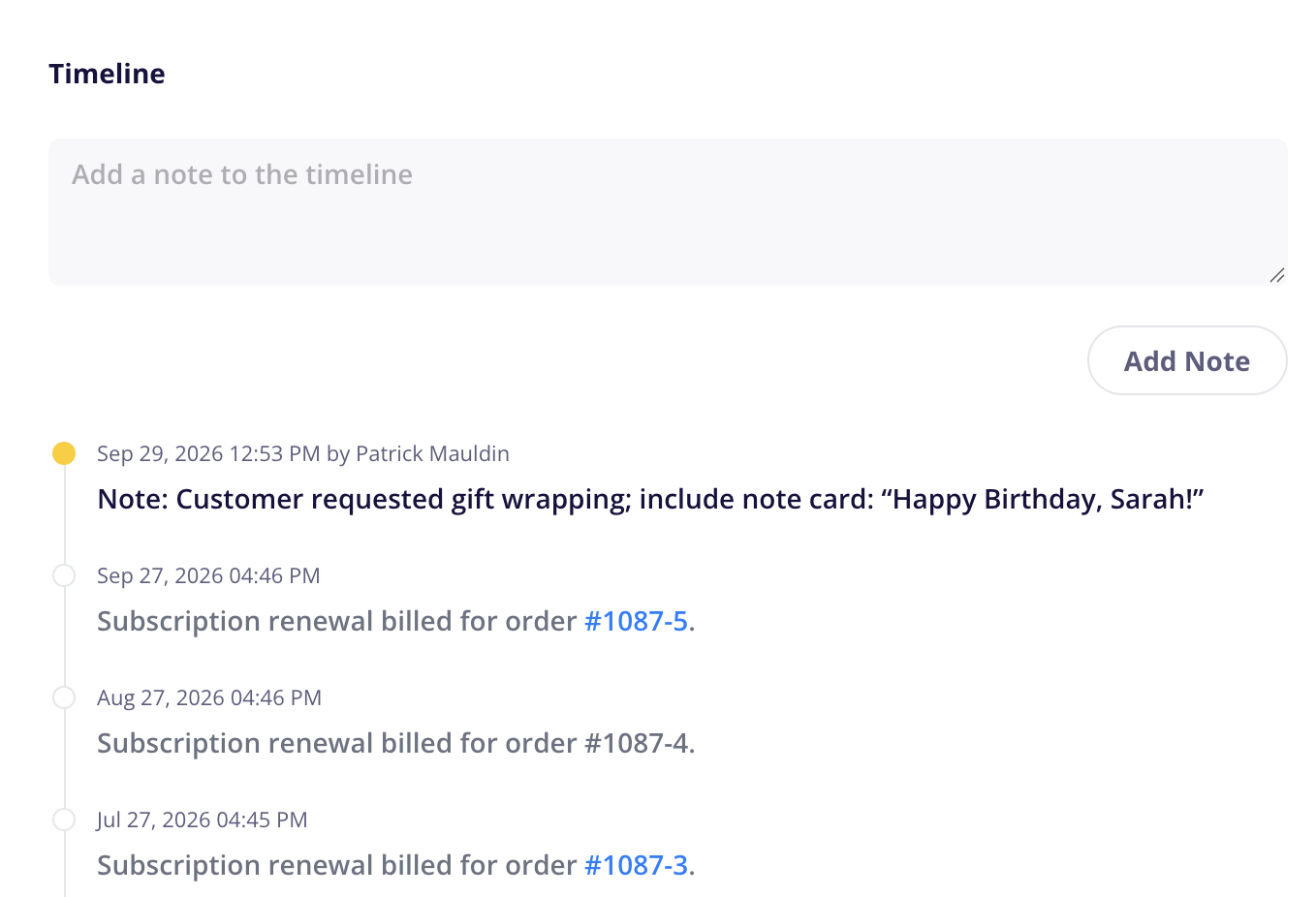
To add a note, open the order and enter your message in the note parapraph box in the order timeline.
Click Add Note button.
The note will be saved with a yellow dot in the timeline and contains a timestamp and the name of the team member who added it.
Notes are internal only and are never sent to the customer.
Any team member with order-edit access can add a note.
On subscription orders, notes also appear on all renewal orders for that subscription.
You can delete a note by hovering over it and selecting the trash icon.
Common uses for order notes
Customer requested gift wrapping and a note card.
Address was confirmed or updated with the customer.
A backordered item is expected on a specific date.
A partial refund was issued for a damaged item.
The order was picked up in store.