
CartGenie lets you add products directly to a customer’s cart using a simple URL link – making it easy to create fast, frictionless buying experiences.
This feature is especially useful in situations where you want shoppers to skip browsing and go straight to checkout. For example:
Sending a custom product link to a client who made a specific request
Running ads or promotions that should land users with items already in their cart
Sharing pre-built carts via email, SMS, or social media
Creating “Buy Now” buttons for landing pages or campaigns
Streamlining repeat purchases or one-click reorder flows
Instead of directing customers to a product page and hoping they complete the process, add-to-cart links let you guide them exactly where you want them to go – with the right product already selected.
This guide walks you through how to build these links and use them effectively in CartGenie.
Products Without Variants
If your product has no variants, you will see an Add Cart link in the top right of your product detail page in CartGenie.
Click the Add Cart button and we’ll copy the link to your clipboard.
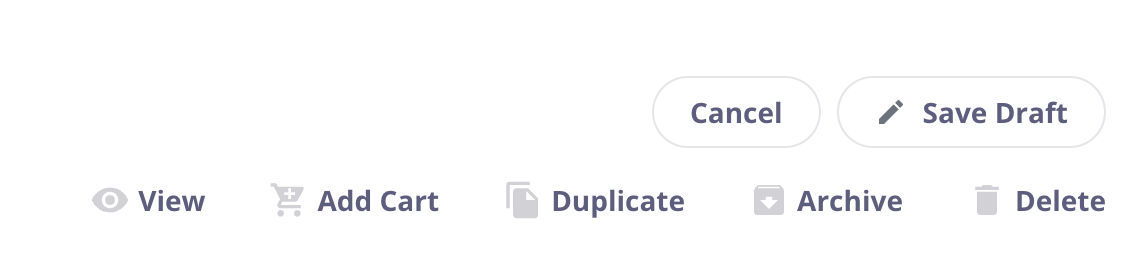
You can then paste the link in your browser or send to a customer so they can use it. Once the customer opens the link, they will be redirected to the page, the item will be added to their cart, and the cart will open automatically (if it is present on the page).
Products With Variants
If your product has variants, you will not see the Add Cart button in the main product page.
Instead, you will need to navigate to the Variants tab and open the specific variant you want to create the link for.
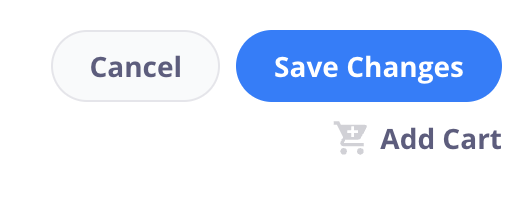
Here, you will see an Add Cart button in the top right detail panel of that variant product.
Click the Add Cart button and we’ll copy the link to your clipboard.
Limitations
Currently, products with required personalization fields will not allow you to copy an add to cart link. The reason for this is because the product requires a value to be entered in the personalization field input prior to being added to the cart. If your personalization field is optional, the button will be available.