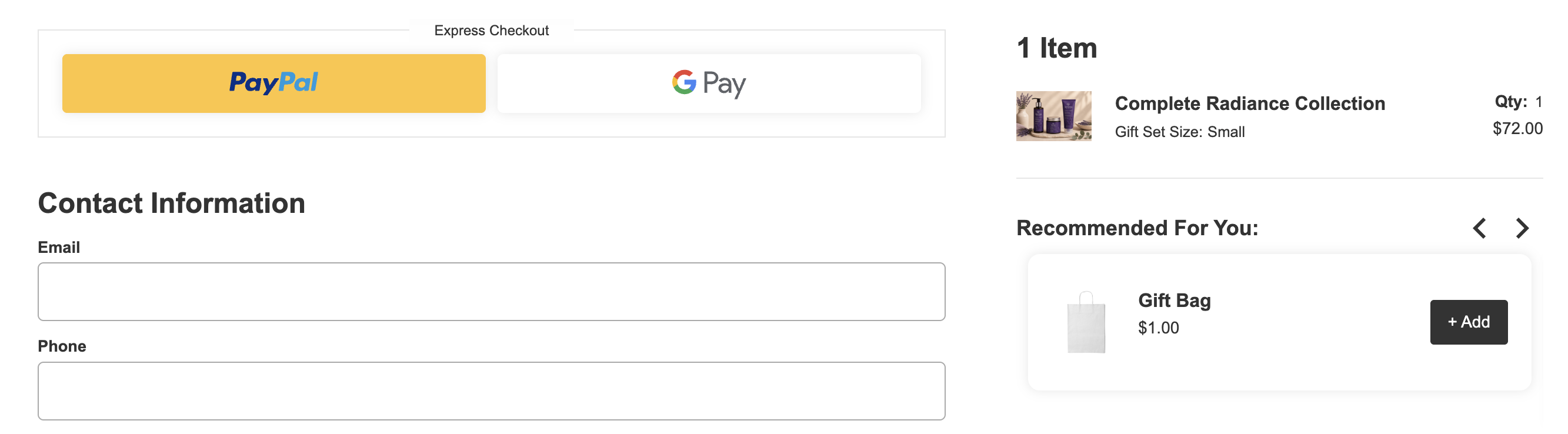
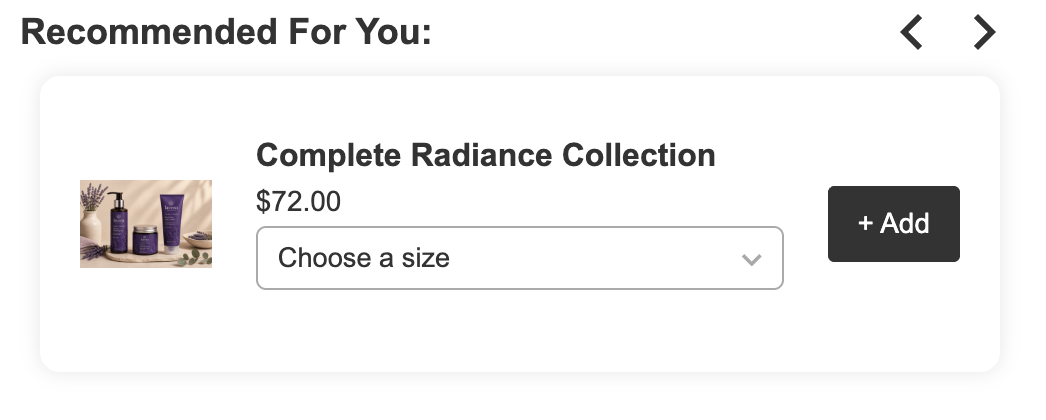
Upsells and cross-sells are a powerful way to increase conversion rates and average order value by recommending additional products to customers during their shopping journey.
With CartGenie, you can create one or more Upsell Sets that determine which products are recommended, when they are shown, and where they appear on your store.
Each Upsell Set contains two parts: triggers & offers.
You can find the Upsell settings in Products > Upsells.
Add an Upsell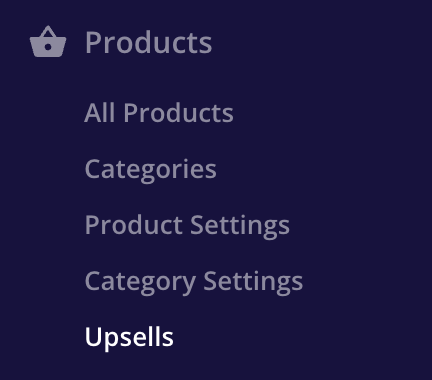
Click the + Add Upsell Set to create a new upsell offer on your site.
Triggers determine when an upsell set becomes active.
You can trigger an upsell using:
Any Product – Applies to all products in your store
Specific Products – Only applies when a customer is viewing selected products
Specific Categories – Applies to products within selected categories
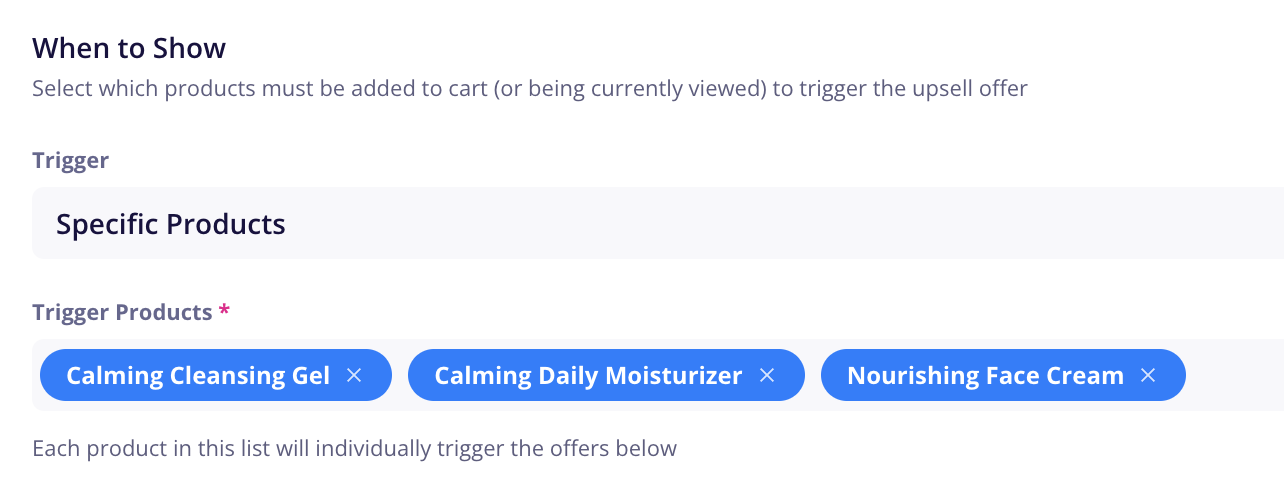

For example, you might show shoe care products whenever customers view specific shoes, while displaying a different set of recommendations for all other products.
Once a trigger is activated, the offer is the product that is displayed to the customer to add to their purchase.
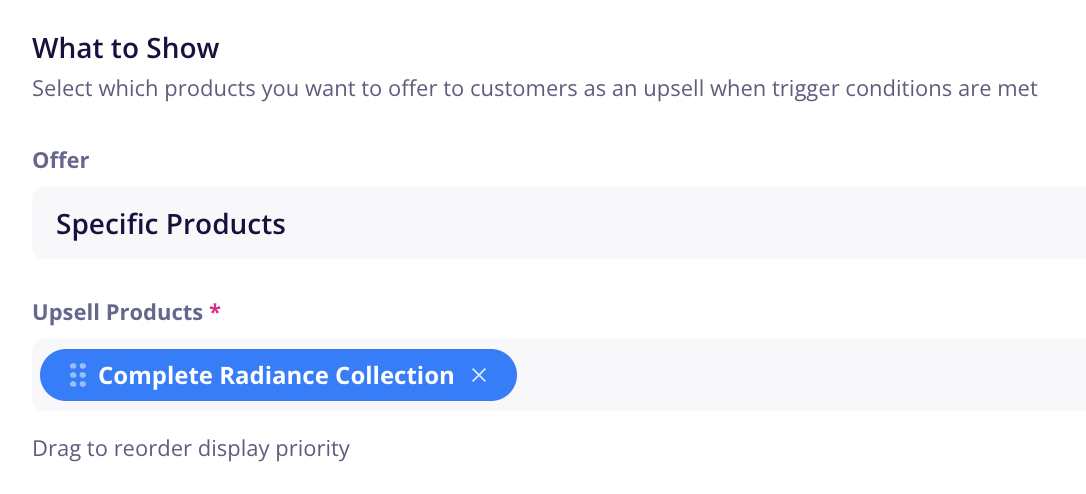
You can offer:
Specific Products – Manually choose the products you want to display as upsells
This is ideal when you know exactly which products pair well together, such as:
Camera → Memory Card, Coffee Machine → Coffee Filters. Shampoo → Conditioner
Data-Driven Sets – Automatically recommend products based on store data. Available options include:
Best Sellers – Your most sold products in the last 30 days
Same Category – Products from the same category as the item being viewed
New Arrivals – Recently added products (based on first published date)
Data-driven recommendations can help surface relevant products without requiring manual product selection.
Each offer is an entire product, not a specific variant. The upsell will allow the customer to select which variant they want to add to cart.
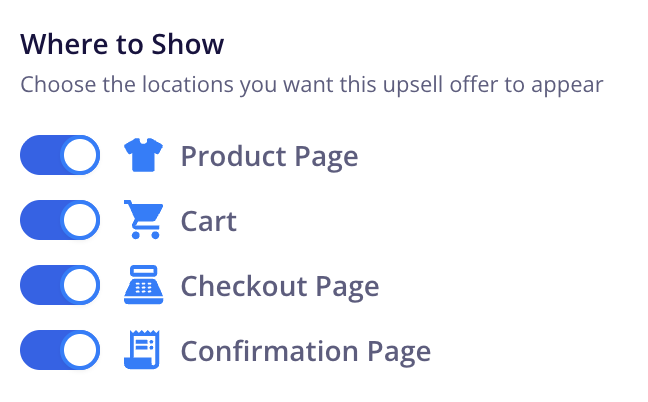
Upsells can be displayed in multiple locations throughout the customer journey:
Product Page
Cart
Checkout
Confirmation Page
Each Upsell Set can be configured to appear in one or more of these locations.
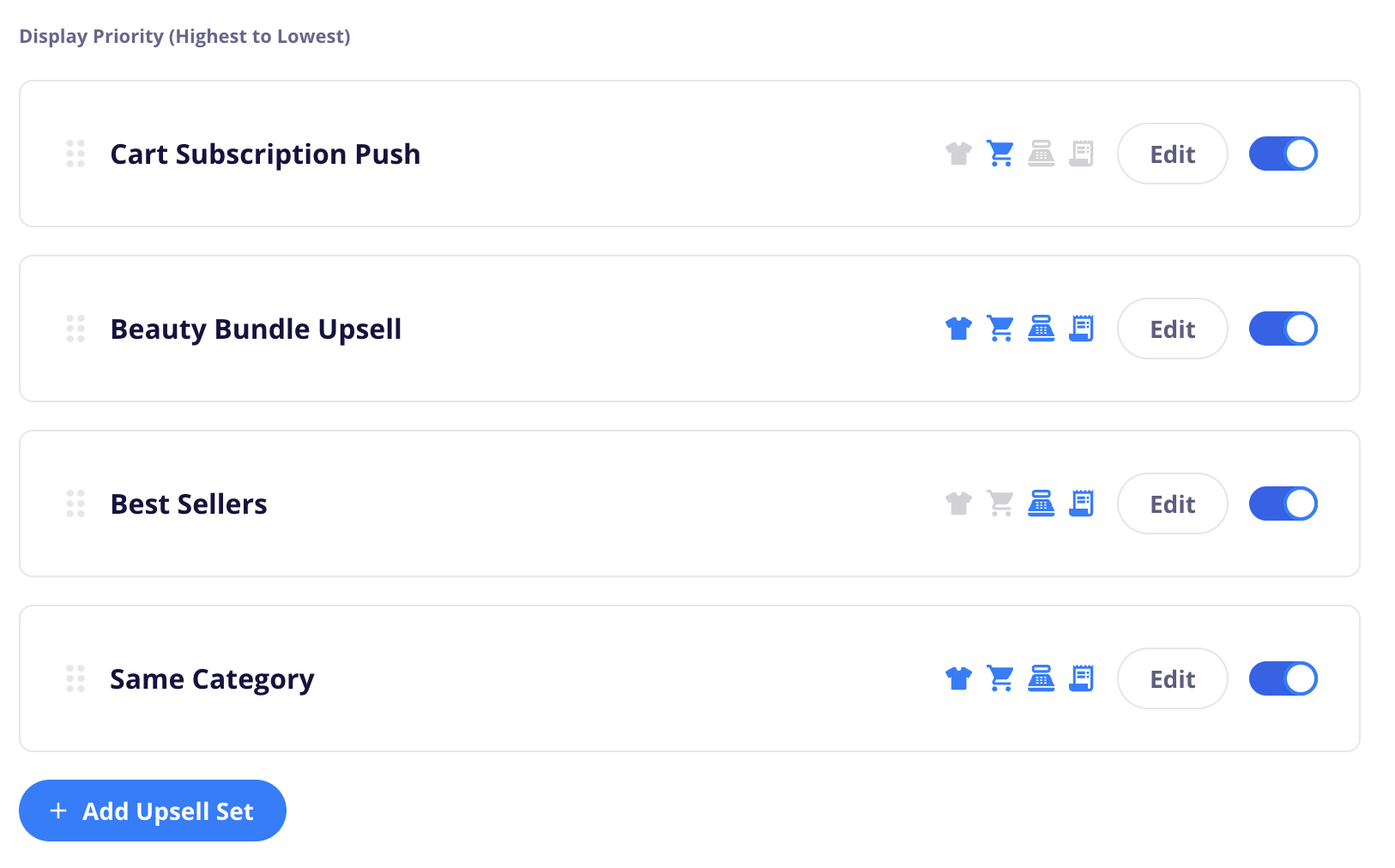
You can add multiple Upsell Sets in CartGenie. Upsell Sets are prioritized from top to bottom based on their position in the Upsell Settings page. You can drag and reorder sets to control their priority.
When multiple sets apply to a product, CartGenie begins filling available upsell slots using products from the highest-priority applicable set. If additional products are needed, CartGenie automatically continues through lower-priority applicable sets until all available upsell slots have been filled.
This allows you to create highly targeted upsells for specific products while still maintaining broader fallback recommendations for the rest of your catalog.
Creating Upsell Sets in your dashboard does not automatically display them on your website.
To display upsells on your storefront, you must add an Upsell Widget using the CartGenie Designer Extension in Webflow.
Click the Apps tab in Webflow’s Designer and then open CartGenie. Go to Create Product Pages > Components > and then click on the Upsells component.
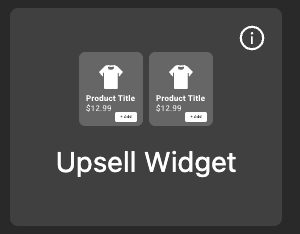
You will then see several layout options to choose from.
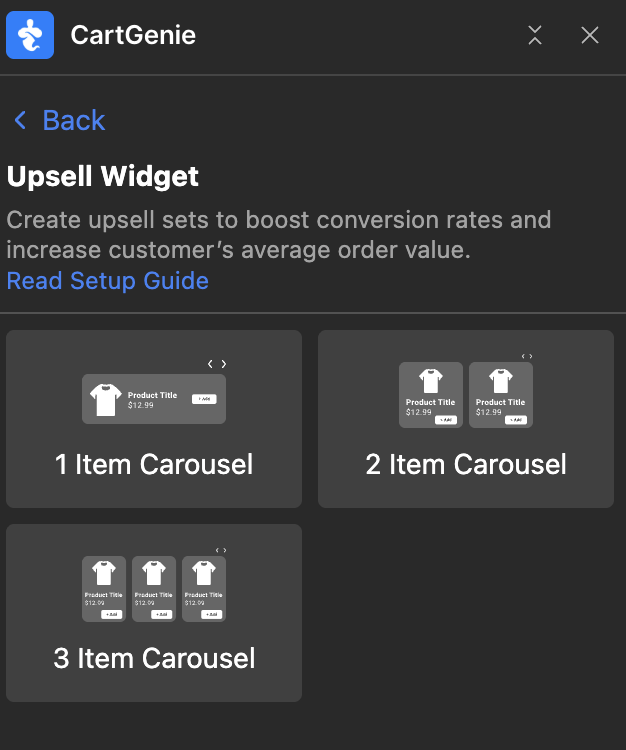
Select your preferred layout and then paste it on either
Product Pages
Cart Pages
Checkout Pages
Confirmation Pages
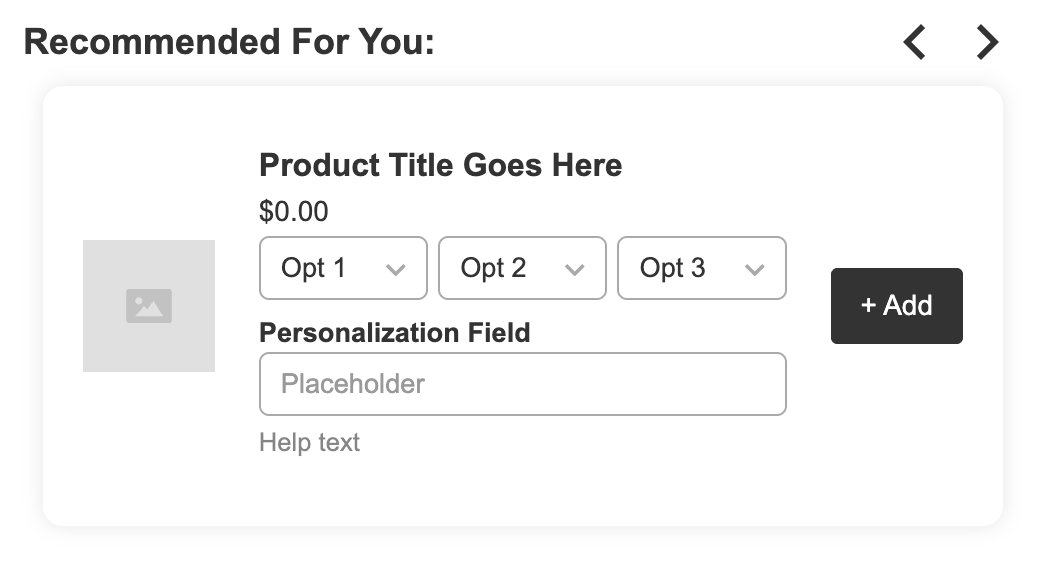
You can now customize the style of the widget to match your site! The option drop downs will hide and auto-expand to fill the space if less than 3 are used for a product.

You do not need to connect any element to CMS fields as each item is dynamically populated for each product offer.
Once added, the widget will automatically display products from your active Upsell Sets based on the trigger and priority rules you have configured.