Pre-Orders allow you to sell products before inventory is available, helping you generate sales, gauge demand, and build excitement around upcoming launches. Customers can place an order today and receive their product once it becomes available.
With CartGenie, you can enable pre-orders for any product, display expected availability information, and continue accepting orders even when inventory has not yet arrived.
Payment is received upfront and charged to your customers – so all you need to do is ship the product when its available!
The toggle adds a few functions which can be very helpful when a product isn’t available yet but you still want to collect orders for it:
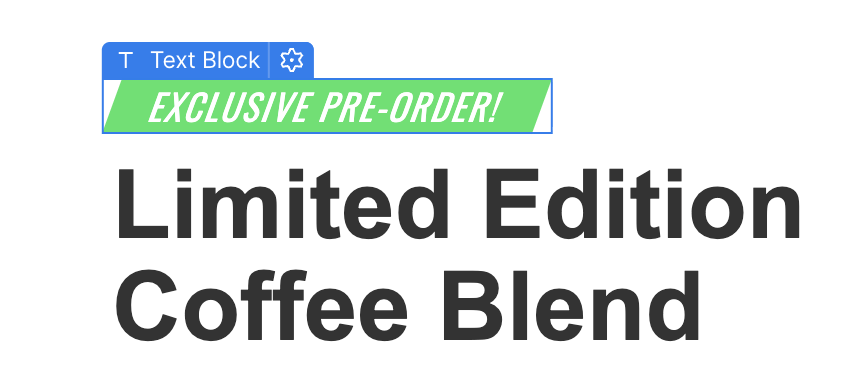
Allows you to add banners & tags to a product on your site so customers clearly know it is a pre-order
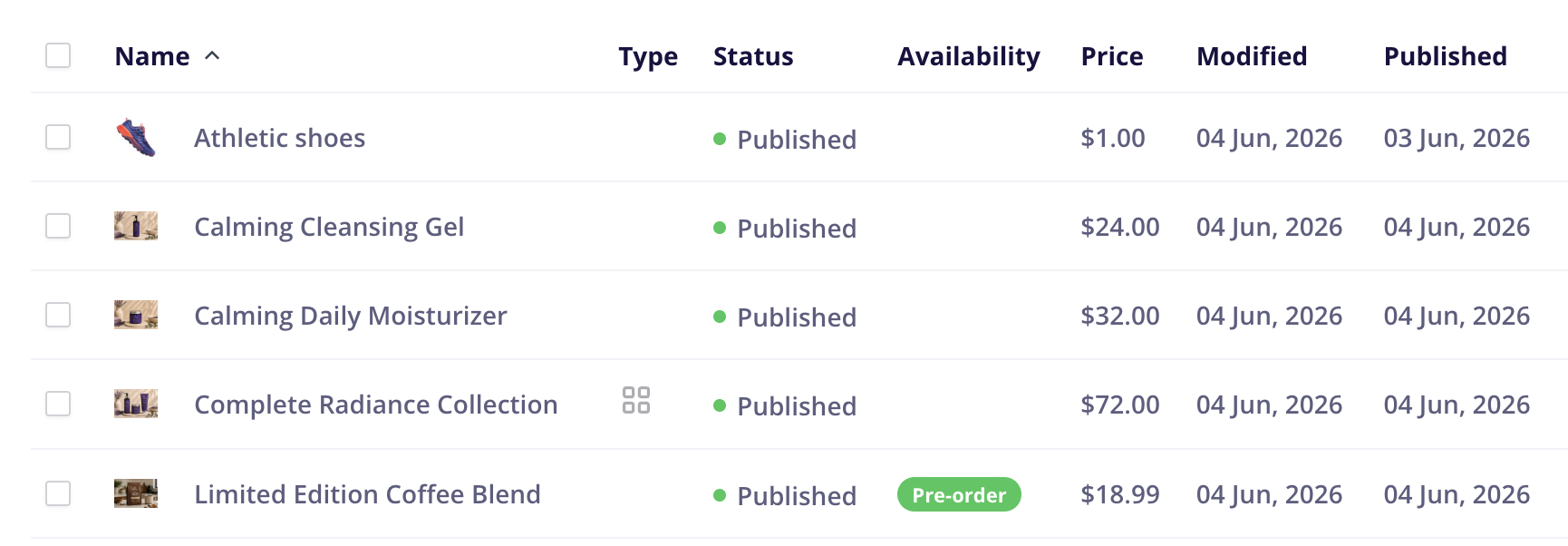
Marks the item as a pre-order in your product list
Notifies customers about its estimated shipping date – at checkout and in order emails
Marks orders in your dashboard that contain pre-ordered items so you can easily find them later when you need to fulfill them
In CartGenie’s product creator / editor panel, you will see a toggle under the Billing & Shipping tab labeled Pre-Orders.
Enable the toggle to allow accepting pre-orders for this product.

(Optional): Enter an estimated shipping date so your customers know when to expect the product to ship. This field is flexible and doesn’t require an exact date – so you can say “Early 2027” for instance.
This product will now have a “Pre-Order” label in your product list page.
You can add an inventory amount to your pre-order product if you wish or leave it disabled in the Billing & Shipping tab. The inventory works just as a regular product and prevents you from selling beyond a set amount of the product.

Note: The first time you enable this toggle on a product, CartGenie will automatically create 2 new custom fields in your Products collection which will be used in later steps:
Switch: Pre-ordered
Plain Text: Estimated Shipping Date
We recommend making it clear to your customers that an item is pre-ordered. This prevents confusion and complaints if the customer doesn’t receive the items immediately.
There are several ways you can do this such as by mentioning it in the product description.
It can be helpful to also add a banner or tag to your products that is more visible and explicit.
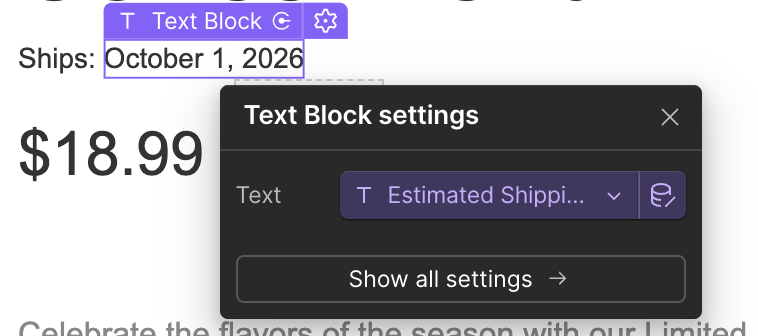
You can also add the Estimated Shipping Date field to your page as well by connecting a text block to the custom CMS field.
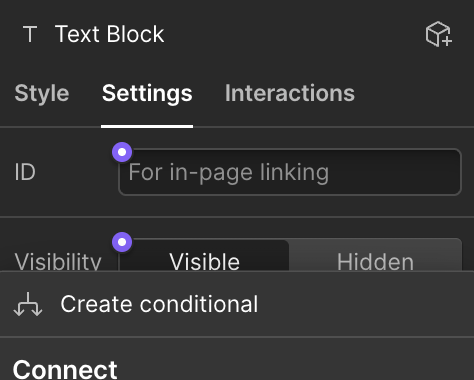
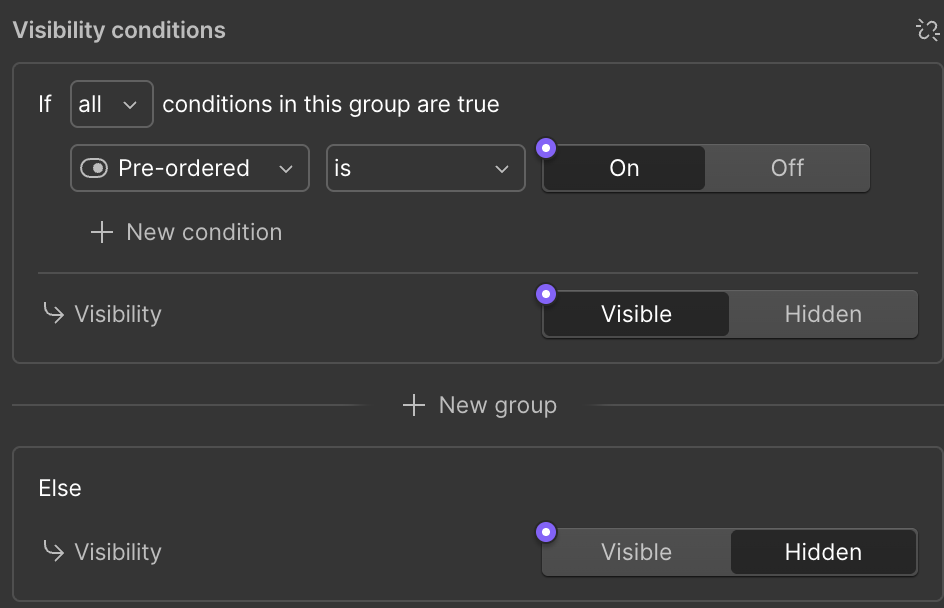
Next, to prevent these fields from appearing on regular products, we need to set conditional visibility. Select each element and go to the layer settings and click on the purple dot next to Visibility: Visible button and then select Create conditional.
Then, set the settings so that the element will be visible when Pre-ordered is “On”
Once your product page is done, publish your pre-order products and start taking customer orders in CartGenie!
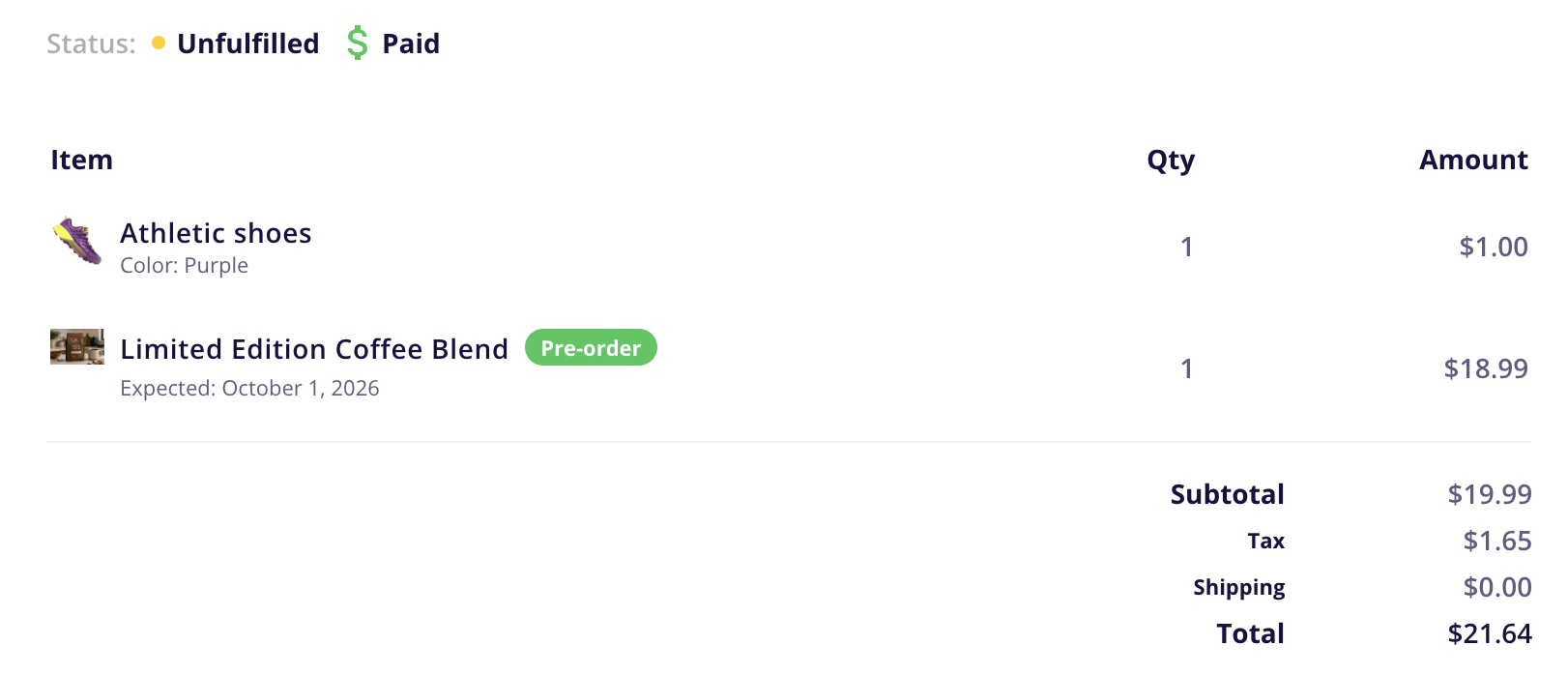
Your customers will see the expected shipping date in the cart and at checkout. Order emails will also show the expected shipping date and a tag marking the item as a pre-order so it is clear it won’t be shipping immediately.

In your CartGenie order dashboard, you will see pre-ordered items marked with the same tag.
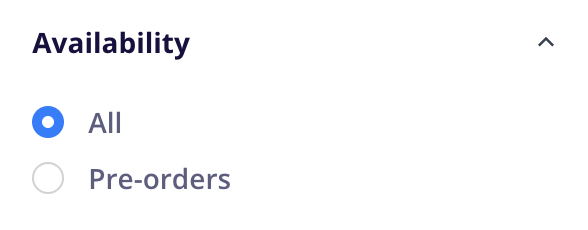
There is also a new filter in your orders list page so you can see all orders that contain a pre-ordered item.
When you have the items in stock and are ready to start shipping them out, you can disable the pre-order tag on your product.
Disabling the toggle will remove:
The conditional visibility banners from your product page
The estimated shipping date from the store pages and order emails
The Pre-order tag from product page list and orders

If an order contains both pre-ordered and in-stock items, you can either wait and fulfill the entire order once all items are available like a normal order, or you can use CartGenie’s partial fulfillment feature to ship the available items immediately.
Click the Fulfill Order button in the order you want to fulfill.
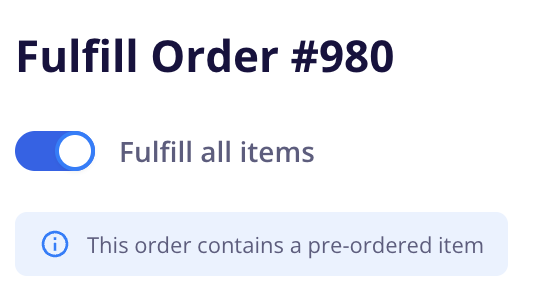
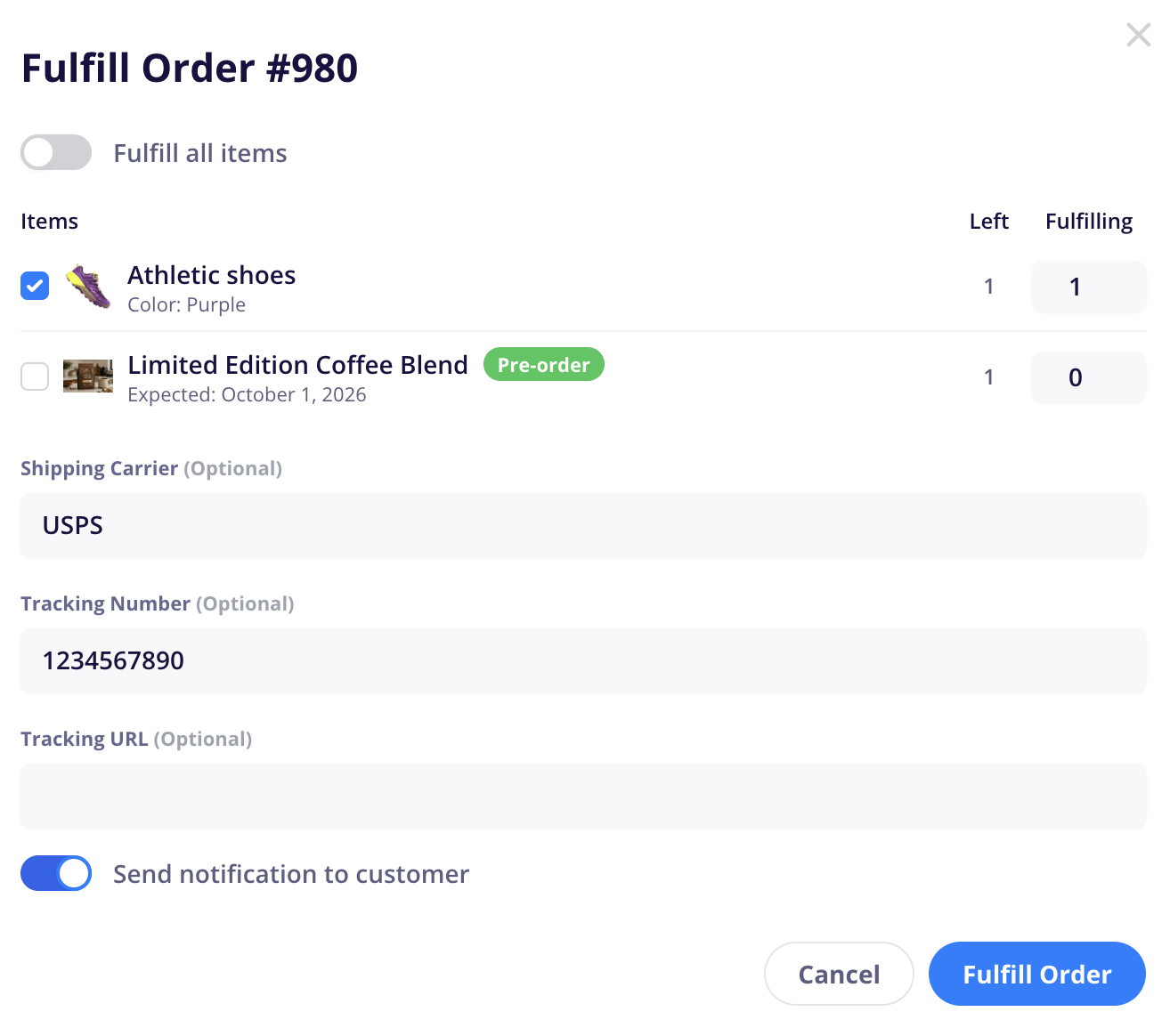
In the popup, you will see a notification informing you that this order includes a pre-order so you don’t accidentally mark it as fulfilled if the item is not available.
Keep the toggle enabled if all items are ready to ship now.
If you disable the Fulfill all items toggle, you can now select which items in the order you want to fulfill now. Click the checkmark or enter the quantity of each you are packing with this shipment.
Then click the Fulfill Order button.
Your order will now be set to Partial fulfillment status and each item will have its own status in the order detail page.
You will also see a Fulfillments section with your shipment and the items it contains.
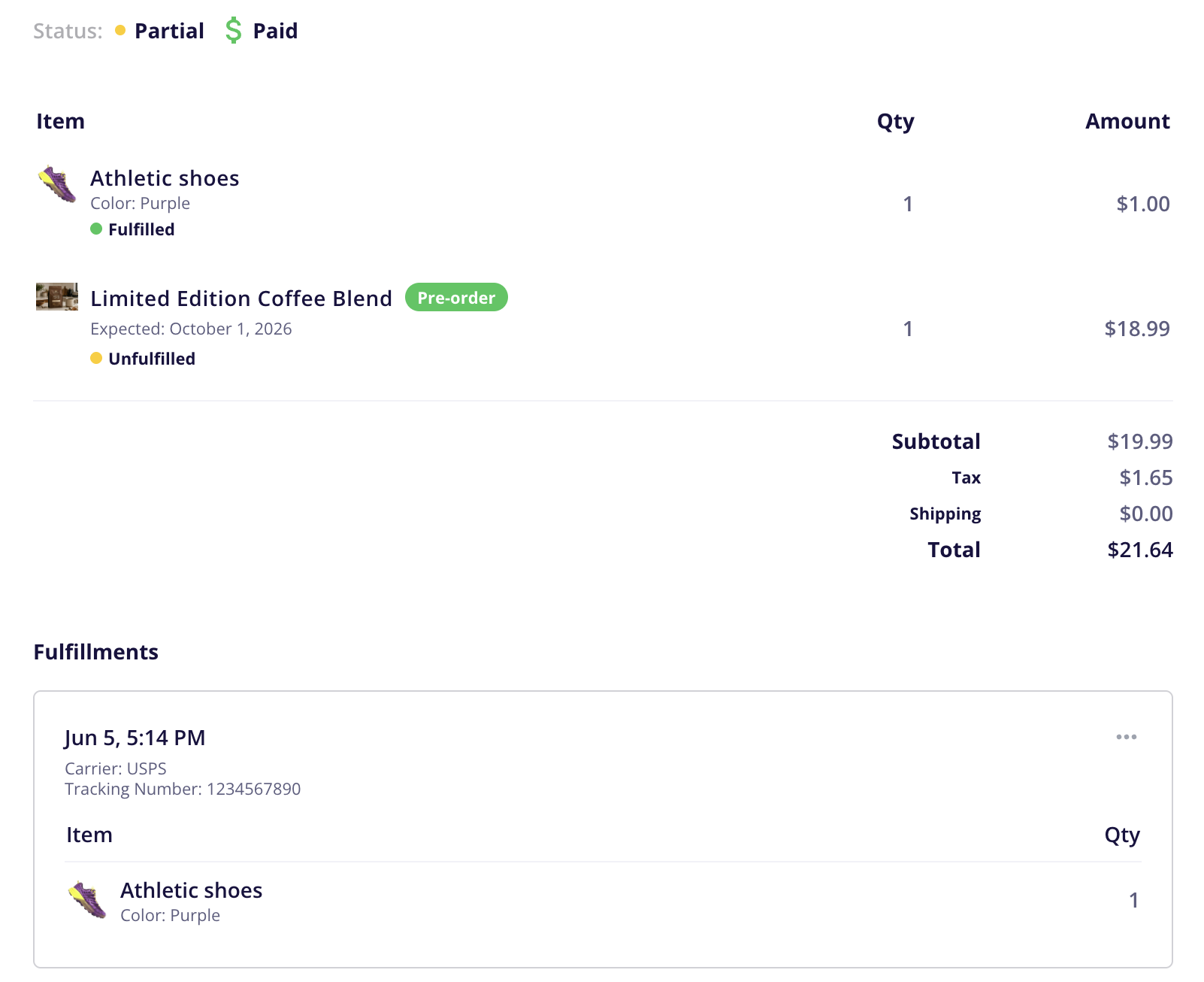
These order and item statuses allows you to easily find orders which contain items which have not yet been sent out.
When the pre-ordered items are ready to ship, you can come back into this order and click the Fulfill Order button again to ship the rest of the items as a separate fulfillment!