Bundle Products let you offer a discount when customers buy several of your existing products together. They're ideal for increasing average order value — pairing complementary items, encouraging multi-item purchases, or offering "buy these three together and save" deals — while each product in the bundle continues to be tracked, taxed, and shipped on its own.
When a customer purchases a bundle, CartGenie automatically deducts inventory from each included product, so your stock levels stay accurate without creating duplicate inventory records. Because the bundle is a pricing layer rather than a separate item, taxes and shipping are calculated per individual product, and each item is fulfilled and shipped as itself.
Bundles look like normal products to customers — with their own product page, title, images, description, and price — letting you present a group of items at a lower combined price than buying each separately.
When creating a new product in CartGenie, inside the “Basic Info” tab you will find a dropdown labeled Type. This determines whether the product is a standalone single product (default) or a bundled product.
Select Bundle Product.
Then use the search box to select which products you want to be in the bundle and the quantity of each.
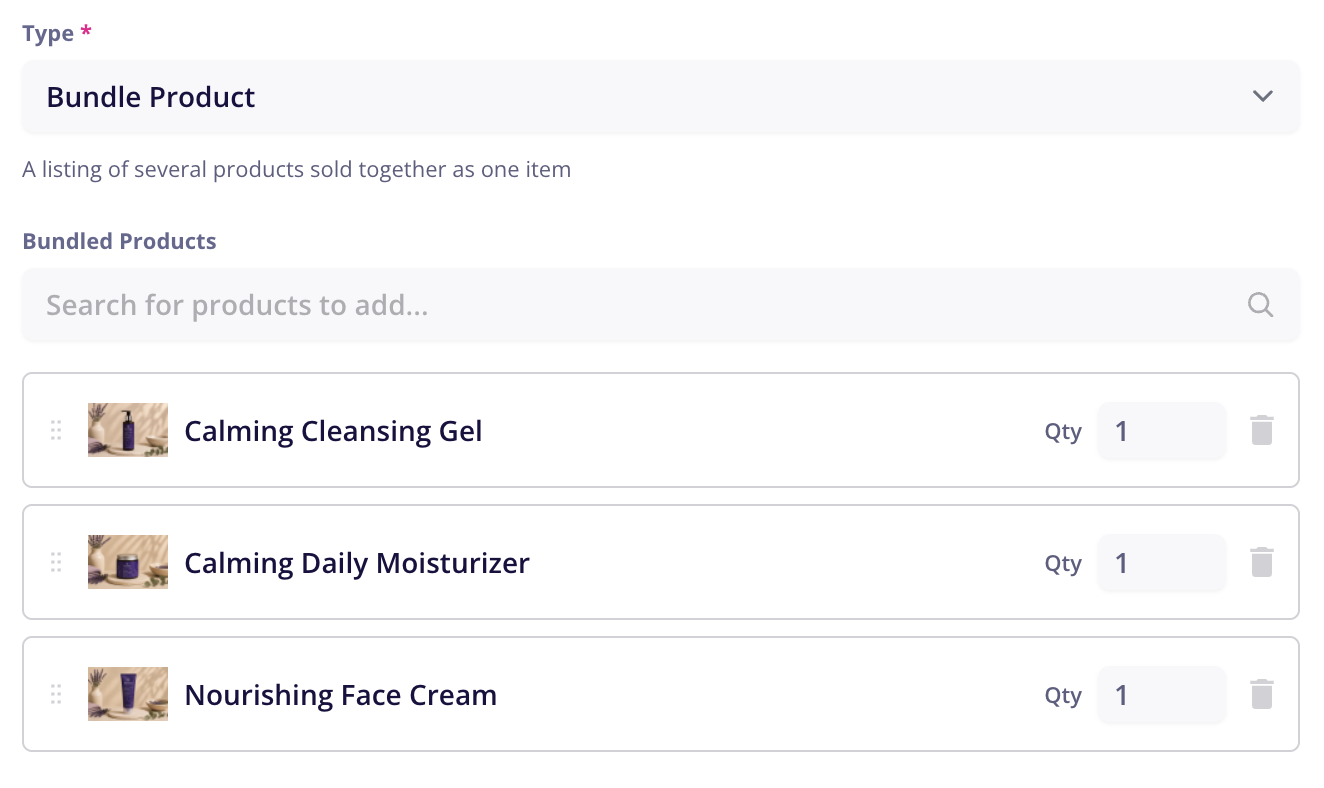

Then, finish setting up your product as your normally would with a title, description, image, price, etc.! You can set any price for a bundle, allowing you to offer special discounts for bundled items vs. if the customer bought each one separately.
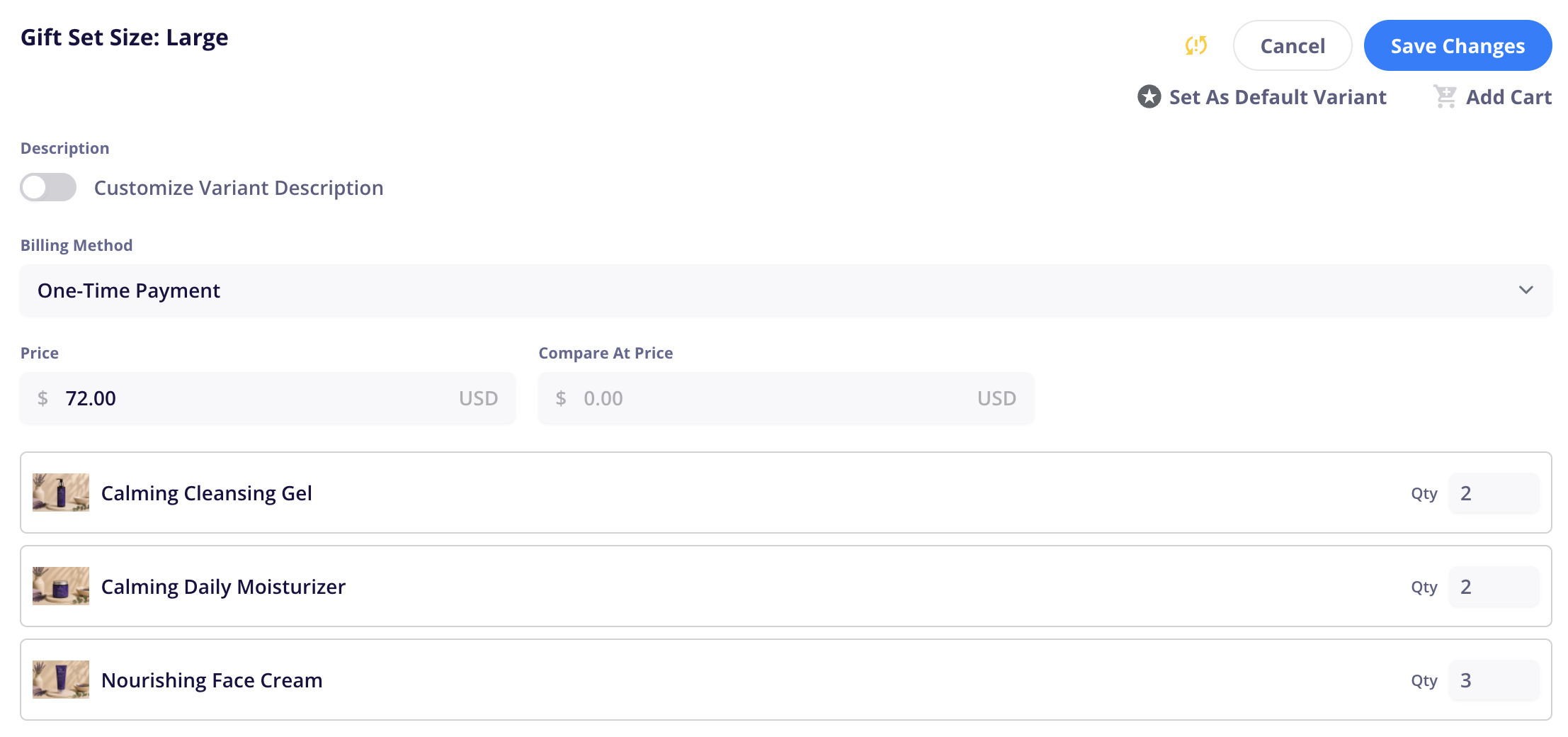
You can create option sets for bundles just like a normal product. Each bundle variant can have a unique mix of quantities of the items in the bundle + a custom price, etc.
If you’ve enabled inventory tracking for the items in a bundle, then each time a bundle is purchased CartGenie will automatically reduce the inventory of those individual items by the amount in the bundle. This ensures your product inventory is always accurate.
In the Billing & Shipping tab, you will see a table of items in the bundle, their current inventory levels, and the total number of bundles that can be sold based on these values.
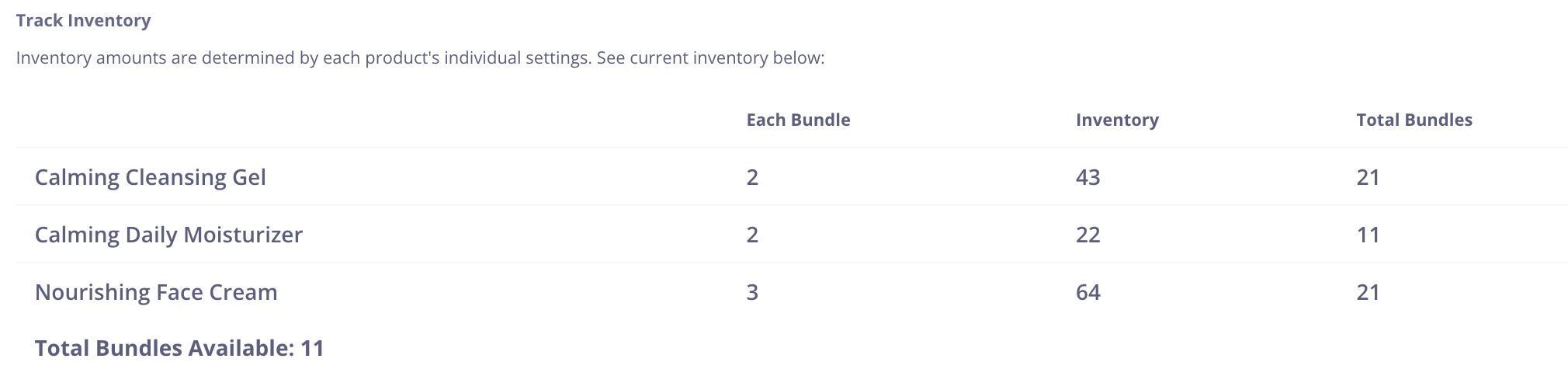
If your product has variants, this table will be found inside of each variant editor instead of the Billing & Shipping tab.
Bundles can be purchased just like any other item in your store.
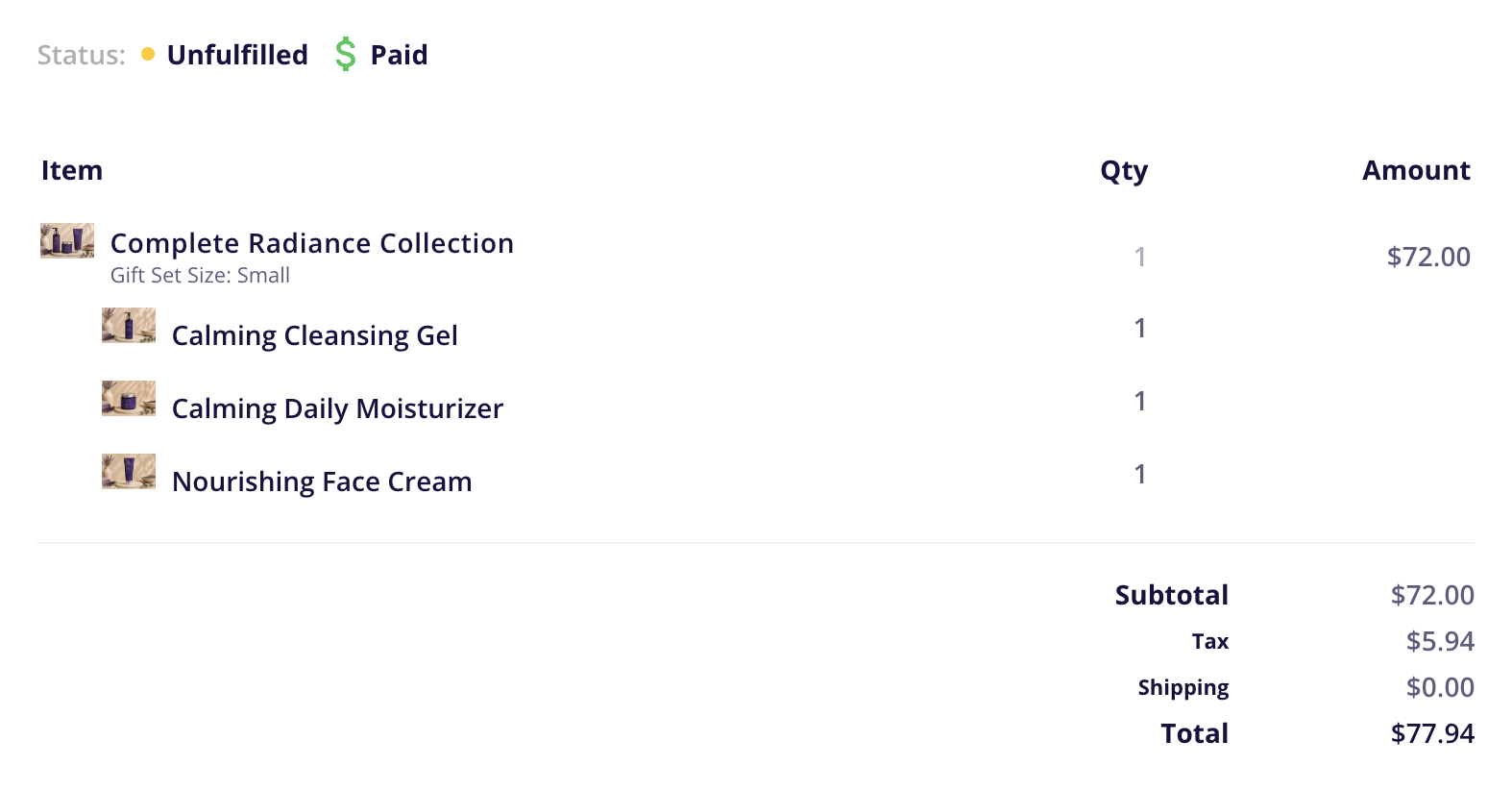
In order emails and in the order dashboard in CartGenie, product bundles will be displayed with the bundle name and price as well as each individual item and quantity listed out below. This allows your fulfillment team to know exactly which items to ship to your customers.

Tax Calculation
You cannot set a tax class for the bundle because CartGenie uses the tax settings of each of the individual items at checkout and calculates the taxes based on their effective discounted individual price – not the price of the bundle itself. If an item is not taxable, it is not included in the calculation.
Example:
Product A Price: $100 (Tax rate = 8.25%). Product B Price: $50 (Tax rate = 12.5%)
Bundle has 1 of each item in it, so normal price would be $150 if purchased individually but the Bundle Price is $120 (20% off).
Therefore revised price for each item for tax purposes are: Product A: $80 x 8.25% and B: $40 x 12.5%
Shipping Calculation
You cannot set shipping settings nor dimensions for a bundle because CartGenie uses the individual product’s shipping settings to calculate shipping at checkout.
Similar to taxes noted above, price based shipping methods use a revised “discounted” price based on the bundle discount.
Personalization Fields
CartGenie will automatically pull in all personalization fields from each individual product into the Bundle product page.
Webhooks & Zapier
Webhooks for New Orders will show the product purchased as the bundle name and price, but will also include “bundle_components” which will list out each product inside of the bundle individually
You can add a column in your product list page for “Type” by clicking the “Columns” button. This helps easily identify standalone products from bundle products which will be indicated by an icon of four small boxes.