
When you first create a product with variants in CartGenie, there is no “default variant” which means when a customer comes to the product page, the parent product information is shown and no options are selected for the option sets (such as size, color, etc.). Before a customer can purchase a product, they must choose each option preference.
You can change this by setting a default variant.
What a Default Variant does:
It pre-selects your selected variant for all customers (ex: Small / Red) when loading the product in a list or single page
This means customers can immediately click the “Add to Cart” or “Checkout” buttons as all options are already selected
CartGenie sends your default variant info & image to Webflow to load natively
Retains all your other variant and parent information
How to Select a Default Variant
Open your product in CartGenie and go to the Variants tab.
Click into the variant you want to set as your default and click the Set as Default Variant option. Then click Save Changes.

You will now see a star icon next to the default variant in your list.
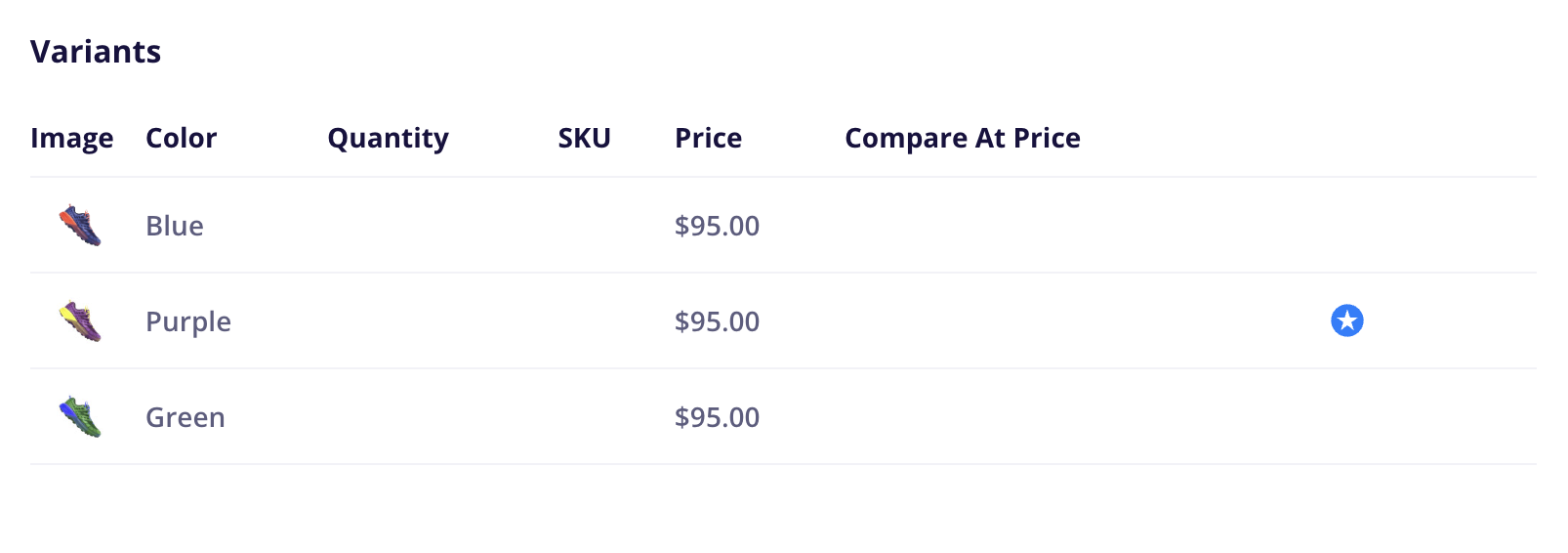
Changing or Removing a Default Variant
You can also select a different variant at any time and set it as the default.
Or you can remove the default variant by going into the current default and clicking the Default Variant option to deselect it.