
When you create a product in CartGenie and add option sets and values (such as Storage: 128 GB, 256 GB, 512 GB and Color: Black, Silver, Gold), CartGenie automatically creates variants for every possible combination of those values.
In some cases, you may never intend to sell certain combinations. For example, a phone manufacturer may offer 128 GB and 256 GB models in all colors, but only offer the 512 GB model in Black. Variants such as 512 GB / Silver and 512 GB / Gold are not out of stock—they simply do not exist.
While you could set the inventory of those variants to 0, this can make inventory management more confusing. A variant with zero inventory typically appears to be temporarily out of stock and may look like something that should be restocked in the future.
What is a Disabled Variant?
The Disable Variants toggle allows you to permanently mark specific variant combinations as unavailable without removing the option values themselves. Disabled variants are clearly distinguished from out-of-stock variants in the backend, helping keep your inventory organized and making it easier to focus on products you actually sell.
To your customers: a disabled variant option will be displayed but will be shown as out of stock and unable to be purchased.
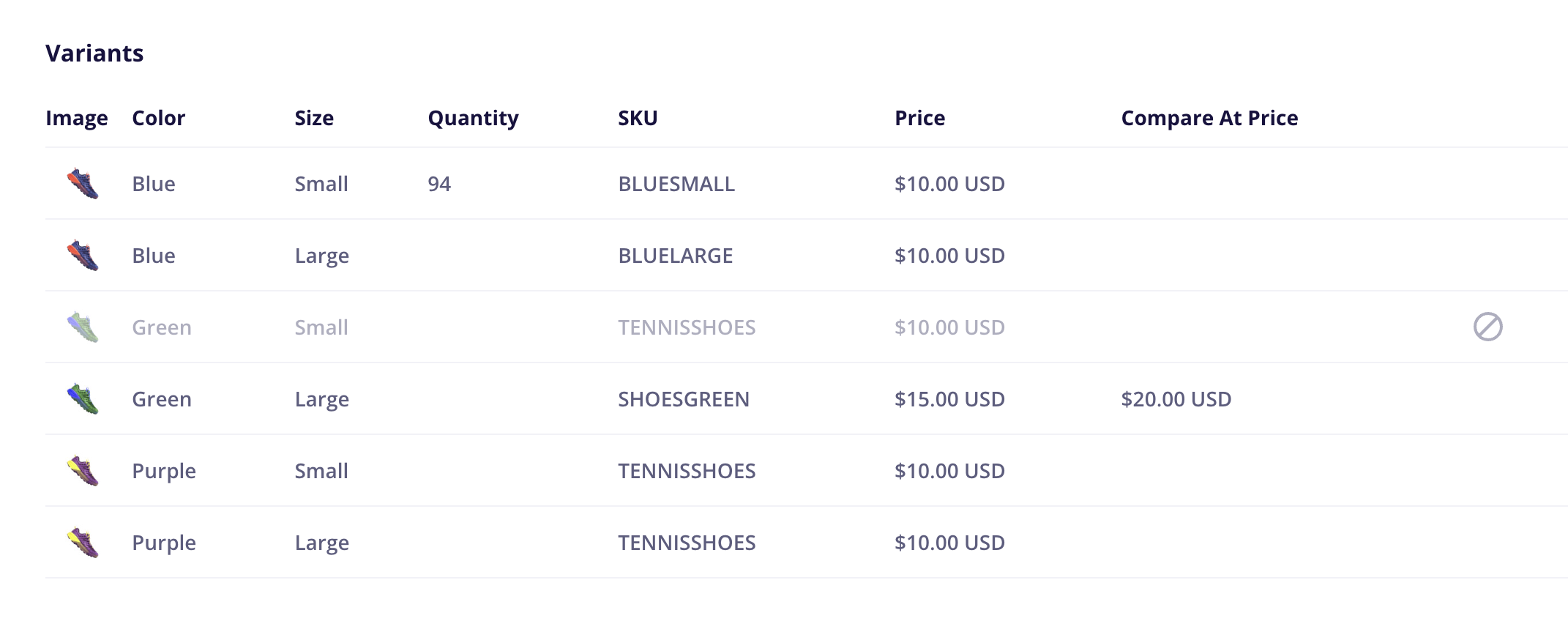
On the backend: you will see a “disabled” icon and the variant will be greyed out so you don’t confuse it with a real product that is simply out of stock.
How to Disable a Variant
In CartGenie, open the product you want to edit and go to the Variants tab.
Click into the variant you want to disable and scroll down to the Disable Variant toggle and enable it.

Then Save your changes.
You will now see the disabled variant as low opacity with a disabled icon.
On the front-end, your product will be shown as Out of Stock if selected.