This guide walks you through transferring an existing Webflow Ecommerce site to a new (non-ecommerce) Webflow site powered by CartGenie, using Claude connected to the official Webflow MCP. The agent does the heavy lifting — you handle a short list of setup and Designer-only tasks it cannot do.
What the agent migrates for you: all pages and layouts, CMS collections and items (with images), design variables (color tokens), styles/classes with responsive breakpoints and hover states, reusable components (nav, footer, etc.), page images/assets, page SEO settings, CartGenie page bindings and styling, and publishing.
What only you can do: the setup steps and a small Designer checklist at the end (details below).

Keep the original Webflow Ecommerce site as-is (the origin). Do not modify it during migration. If you prefer, you can duplicate your current Webflow Ecommerce site first to prevent any accidental changes
Create a new blank Webflow site (the destination). Do not enable Webflow Ecommerce on it.
Add CartGenie to the new destination site and follow the CartGenie Setup Guide steps so the required CMS collections, store pages, and products exist in the destination from the start.
Be sure that during CartGenie signup, you enable the toggle to migrate your products into CartGenie from the origin Ecommerce site so the Products collection is populated (names, prices, images, SKUs, dimensions, options). See guide below:
Migrating a Webflow Ecommerce site to CartGenie
How to migrate your existing Webflow Ecommerce site to CartGenie
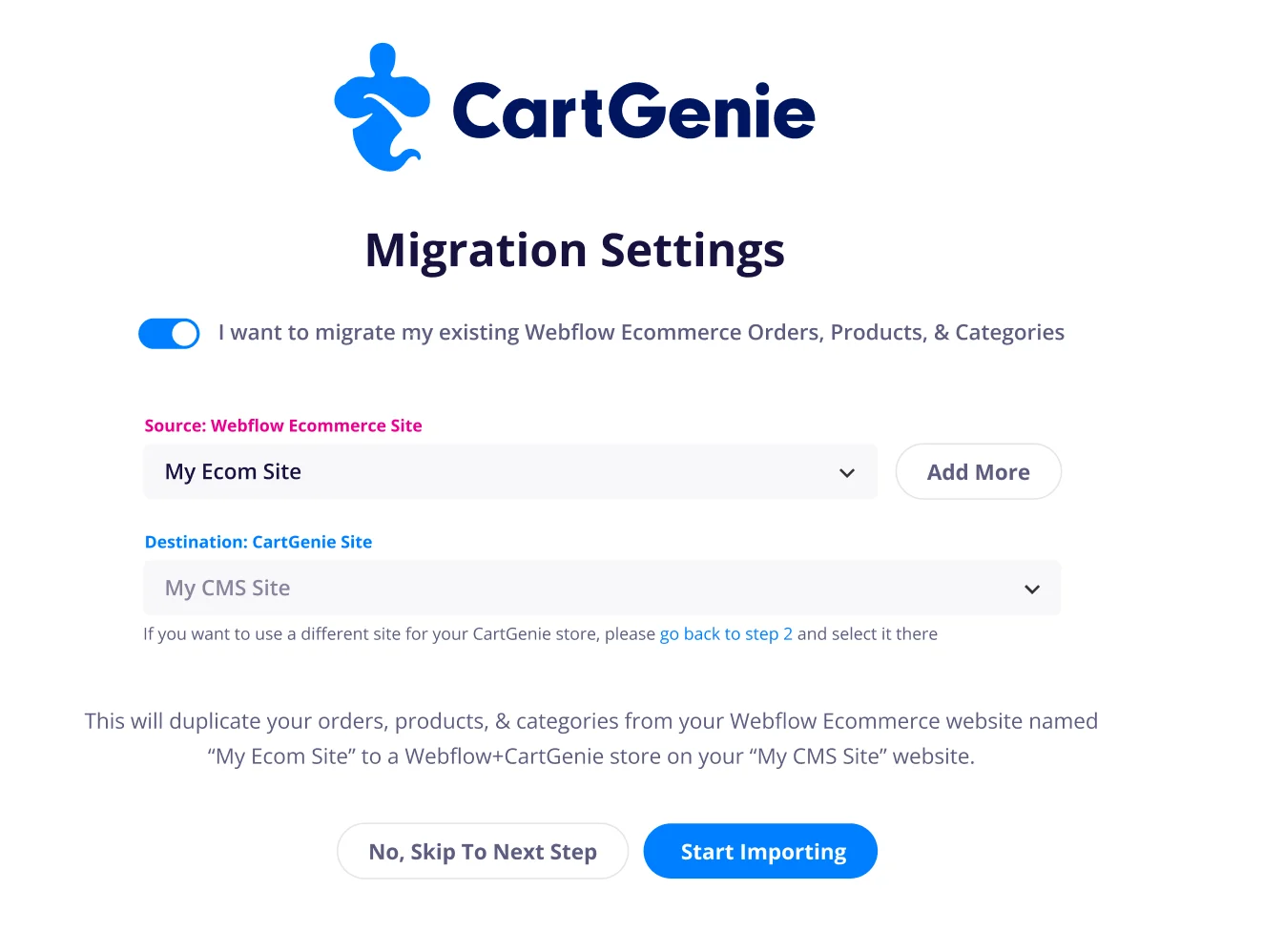
Why first: the agent binds pages directly to CartGenie's collections and skips re-uploading product images (CartGenie already owns those). Adding CartGenie later forces rework.
Create a backup point on the destination site (Site Settings → Backups) so everything is reversible.
Add the official Webflow MCP to Claude (Claude Code or Claude Desktop): server URL https://mcp.webflow.com/mcp.
Complete the OAuth sign-in when prompted and grant access to both the origin and destination sites. (A restart of the Claude session may be needed for the tools to appear.)
Connecting to Webflow's MCP using Claude
Use an AI agent to make edits and build new pages and CMS collections on your site
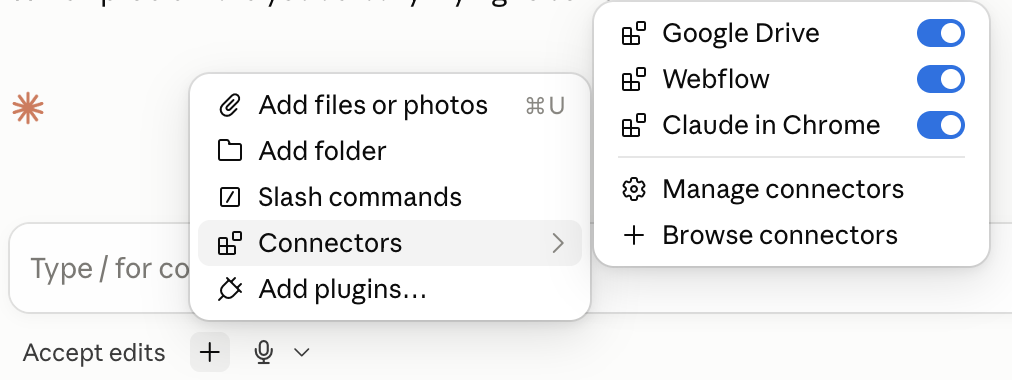
This lets the agent view the published site, take screenshots, and visually compare against the original — dramatically improving design fidelity. Install it and sign in with the same Claude account
Open a fresh Claude conversation and paste the migration prompt into Claude Code to give it a framework and flow to follow for the migration – this will help avoid a lot of pitfalls.
Download Migration PromptPasting the prompt above will suggest that the agent work in this order:
The agent audits the origin site: pages, CMS collections and fields, design variables, styles, components, assets, fonts, forms, and custom code. It presents a migration manifest — what maps to CartGenie, what migrates as-is, what gets skipped (Webflow-ecom-only pages like the native cart/checkout) — and waits for your approval before writing anything.
Design variables (color tokens) are copied first, then base styles and typography classes (Google Fonts load automatically when referenced), then page images/assets are transferred. Product images are not re-uploaded — CartGenie's CMS already has them.
Nav bar, footer, and other repeated blocks are built once and converted to Webflow components so every page reuses them.
Non-ecommerce collections (blog, testimonials, etc.) are recreated field-for-field and all items imported — images in CMS fields transfer automatically. Collections that CartGenie already provides (Products, Categories, Product Options) are not duplicated.
Every page from the origin is recreated: static pages, CMS template pages, and dynamic lists (product grids, blog grids) — bound to the right collections, with page SEO settings carried over.
The agent binds the product template's elements to CMS fields and styles CartGenie's product, checkout, and confirmation pages to match the original design — while preserving every CartGenie element, attribute cg-data-cg-), and nesting exactly.
The agent publishes and screenshot-compares pages against the origin, fixing differences. Expect it to iterate here.
These are the few things the agent cannot do through the API. It will remind you, but here's the full list:
Task | Where | Why |
Set "Current Product" links on product-card Link Blocks inside Collection Lists | Select the card → Link settings → Page → Current Product/Item | API-set links render as |
Conditional visibility for option sets and optional fields | Element → Settings → Conditional Visibility (e.g., show option wrapper 2 only when Option Name 2 is set) | The API can only condition on on/off Switch fields, not "is set" on text fields. |
Set default fonts / tag styles (Body, H1–H6, Paragraph) | Designer → select Body/All H1s etc., or Site Settings → Fonts | Rich-text content (blog posts, product descriptions) uses tag styles the API can't set. The agent styles regular headings via classes, but rich text needs this. |
Mobile navigation menu | Review the nav on mobile; recreate with a native Navbar element or add an interaction | The hamburger open/close behavior can't be created via the API. |
Interactions/animations | Designer → Interactions | Any animations from the original must be recreated manually. |
Favicon & webclip | Site Settings → General | Assignment is a site setting. |
Form settings (notification emails, redirects) | Site Settings → Forms | Site settings aren't exposed to the agent. |
Custom domain & final publish | Site Settings → Publishing | Connect your domain and publish when satisfied. |
Verify CartGenie config (payments, shipping, taxes) | CartGenie | Commerce behavior is CartGenie's domain, not the page build. |
Approve the manifest carefully in Phase 1 — scope changes are cheap there and expensive later.
Let the agent verify visually. Runs with the Chrome extension connected end noticeably closer to the original design; the agent can screenshot and self-correct.
Expect checkpoints. A good agent pauses after major phases (foundations, first page, CMS import) for your review. The homepage is the best early checkpoint.
Don't edit the destination in the Designer mid-run (except when the agent asks you to). Concurrent edits can conflict with the agent's changes.
Publish rate limits are normal. If the agent mentions a publish being rate-limited, it just waits and retries.
Sessions are long. If a session ends partway, the agent can resume — its progress lives in the sites themselves, and it can re-inventory to see where it left off.