Purchase Limits let you set a minimum or maximum quantity of a product that can be bought in a single order — useful for launch fairness, per-customer caps, case packs, and made-to-order minimums.
Purchase Limits live on each product, in the Billing & Shipping tab under Availability & Inventory, below Track Inventory.
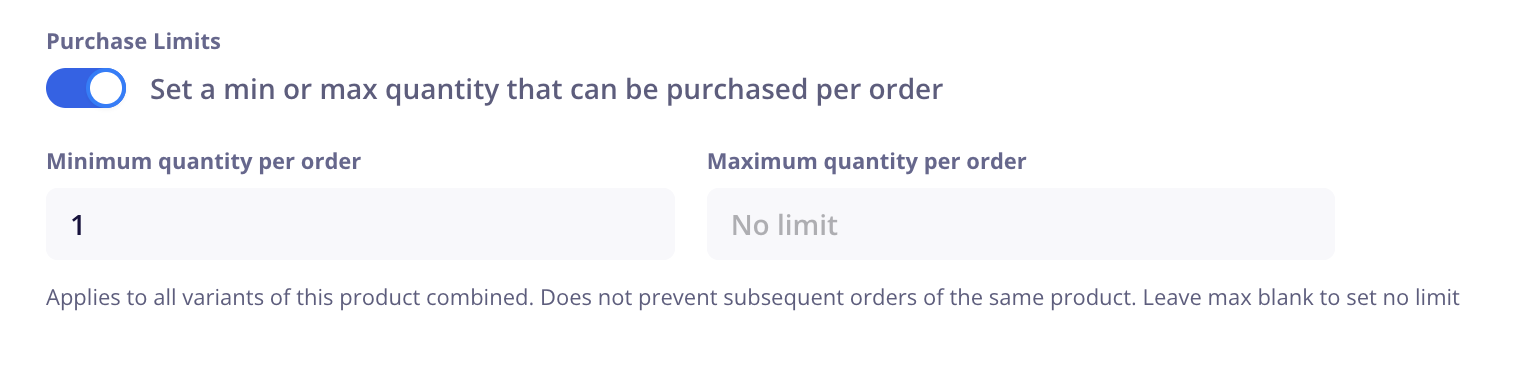
Open the product and go to Billing & Shipping.
Turn on Purchase Limits — "Set a min or max quantity that can be purchased per order."
Fill in either Minimum quantity per order, Maximum quantity per order, or both.
Save the product.
The toggle is off by default, and turning it on changes nothing until you enter a value. Minimum starts at 1, which is the same as no minimum. Maximum starts blank and shows No limit until you type a number.
To remove a limit later, clear the field or switch the toggle off. Switching the toggle off keeps whatever you typed, so you can turn it back on after a launch without re-entering the numbers.

Beyond the product page, maximums and minimums are enforced at different points, because they fail in different ways. A maximum can be caught the moment a shopper adds too many, so it is enforced in the cart. A minimum cannot — a shopper may still be building their order — so it is enforced at checkout.
Where | Maximum | Minimum |
Product page | Enforced — selector will not go past the maximum | Enforced — selector loads with the minimum in place |
Cart | Enforced — quantity cannot exceed the maximum | Not enforced |
Checkout | Already enforced in the cart | Enforced — order cannot be placed below the minimum |
Messages appear on all three surfaces when a shopper tries to order too few or too many.
When a shopper tries to order fewer than the minimum:
“You must order at least 6 of Blue Widget per order.”
When a shopper tries to order more than the maximum:
“You can only order up to 2 of Blue Widget per order.”
Both messages name the product, so a shopper with several items in the cart knows which one to change. They appear on the product page, in the cart, and at checkout.
Limits cover all variants combined. A maximum of 2 on a t-shirt means two shirts total, not two of each size & color, etc.
Limits apply per order, not per customer. A shopper capped at 1 can place a second order for another one. Purchase Limits are a cart rule, not an identity check.
Limits work with or without inventory tracking. They are independent of Track Inventory, so made-to-order and print-on-demand products can use them.
Minimums and stock. If your minimum is higher than the stock you have left, the product cannot be bought until you restock or lower the minimum.
Existing carts are re-checked. If a shopper had items in their cart before you set a limit, the limit is applied when they next open the cart or reach checkout.