CartGenie can create and maintain a product feed for OpenAI so your products can be considered for relevant shopping results in ChatGPT. Customers who select one of your products complete their purchase on your own website.
Setup requires two separate steps:
Enable and prepare the feed in CartGenie.
Apply to OpenAI and receive approval for your individual store.

Make sure:
Your storefront and product pages are published and publicly accessible.
Your products have accurate titles, descriptions, images, prices, availability, and product URLs in CartGenie.
Your store has public pages for its privacy policy, terms of service, return and refund policy, and shipping policy.
Your catalog complies with OpenAI's product policies. OpenAI does not allow certain products, including adult content, alcohol, nicotine, gambling products, weapons, prescription-only medications, dangerous materials, illegal goods, or other age-restricted or regulated products.
Open Settings → Sales Channels in your CartGenie dashboard.
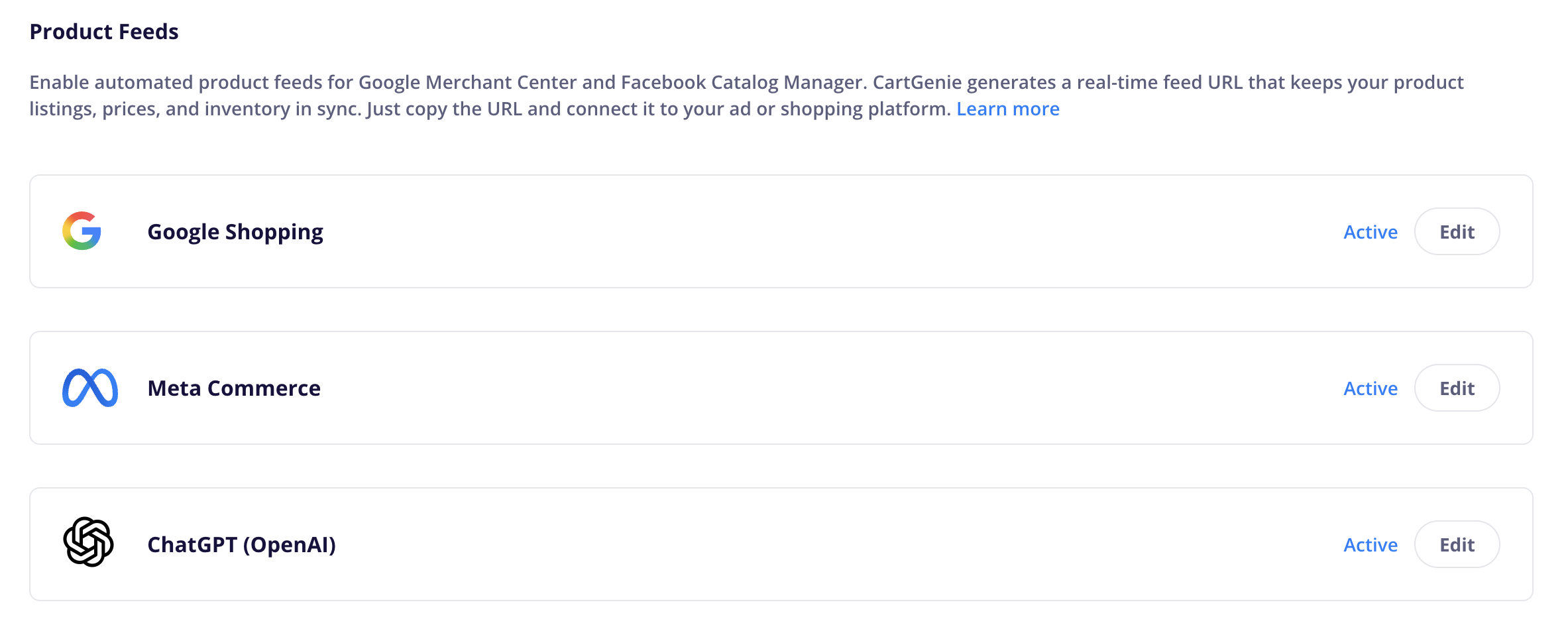
Find ChatGPT (OpenAI) and select Edit.
Turn Status to Active.
Enter the public URLs for your store policies:
Privacy policy URL
Terms of service URL
Return and refund policy URL
Shipping policy URL
Select Save.
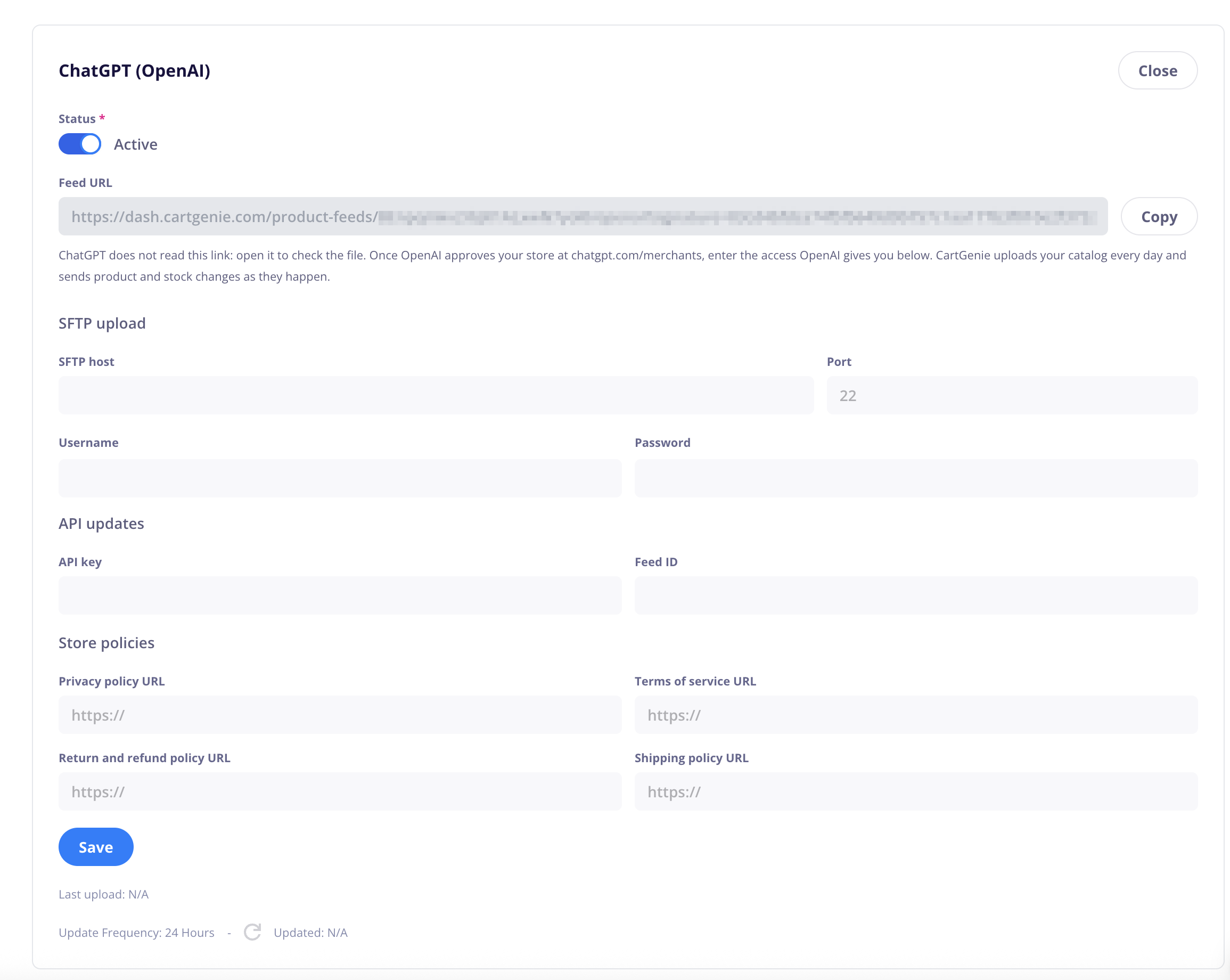
CartGenie will generate a feed URL for your store. You can open this URL to confirm that the feed file is available, but you do not need to submit this URL to OpenAI. ChatGPT does not read products directly from this link.
Leave the SFTP upload and API fields blank until OpenAI approves your store and provides your connection details.
The store owner or an authorized representative must apply through the OpenAI merchant application.
OpenAI currently asks for:
The applicant's name, work title, LinkedIn profile, and work email
The merchant or company name
The merchant's headquarters country
A link to the merchant's website
The store's primary product categories
The type of integration requested
Whether the product feed is ready
The number of unique SKUs in the feed
When completing the application:
Choose the option to integrate a product feed so your products can appear in ChatGPT shopping results.
Confirm that your feed is ready and meets OpenAI's specifications. CartGenie generates the feed in OpenAI's supported format.
Enter your store's total number of unique SKUs. Count each separately purchasable product variant with its own SKU.
In the additional information field, you may include:
Our store uses CartGenie to generate and maintain an OpenAI-compatible product feed. CartGenie can deliver our complete catalog by SFTP on a daily schedule. Our feed includes current product information, pricing, availability, images, product links, and store policy links.
Submit the application.
Submitting the form places your store on OpenAI's merchant waitlist. OpenAI controls approval and onboarding, and CartGenie cannot approve the application or provide an approval timeline.
After approval, OpenAI will provide onboarding instructions and the connection details enabled for your store.
Return to Settings → Sales Channels, select Edit beside ChatGPT (OpenAI), and enter the details OpenAI provides:
SFTP host
Port — normally 22, unless OpenAI provides a different port
Username
Password
API key
Feed ID
Only enter credentials issued or confirmed by OpenAI for this merchant integration. If OpenAI provides SFTP access without an API key or Feed ID, enter the SFTP credentials it provides and leave the other fields blank.
Confirm that your policy URLs are correct, keep the status set to Active, and select Save.
After saving your credentials, use the information at the bottom of the OpenAI feed settings to check the connection:
Last upload shows when CartGenie last sent the catalog to OpenAI.
Updated shows the most recent feed update recorded by CartGenie.
Update Frequency shows the scheduled full catalog upload interval.
CartGenie uploads a complete catalog snapshot every 24 hours. OpenAI may take additional time to process a new feed or reflect later changes in ChatGPT.
OpenAI can use your feed to understand your products and present current information such as images, pricing, availability, variants, and store policies in relevant ChatGPT shopping experiences.
Feed approval does not guarantee that a product will appear for a particular query or receive a specific position. OpenAI determines which products are relevant to each shopper's request. When a shopper chooses your product, they are sent to your website to complete checkout.
OpenAI currently states that there are no fees on purchases that begin in ChatGPT and are completed on a merchant's website.
Confirm that the feed status is Active.
Confirm that you selected Save after entering the connection details.
Check the SFTP host, port, username, and password for extra spaces or missing characters.
Make sure the credentials belong to the OpenAI feed approved for this store.
Your application remains on OpenAI's waitlist until OpenAI contacts you. CartGenie can prepare the feed before approval, but it cannot view the status of your OpenAI application.
Check that each affected product is published and has a valid product URL, image, price, description, and availability. Also confirm that the product complies with OpenAI's prohibited-products policy.
OpenAI may retain the most recently processed product record for up to 14 days after a product is removed from later feed snapshots.