If you want to sell wholesale products alongside your regular retail products, there are a few ways you can do this and keep them private.
If you want more control and separation, this is the preferred method.
Simply duplicate your current Webflow site and then publish it on a new custom domain or a subdomain of your primary site – such as whoelsale.store.com.
You can then create a new CartGenie account for the wholesale site and list all your wholesale products only on this new account with your preferred prices, payment methods, shipping rates, etc.
You can password protect this site using Webflow’s password feature.
If you want an easier method that requires less work and is easier to maintain, you can use your existing Webflow site and existing CartGenie account for both your regular products and wholesale products.
We need a way to distinguish retail products from wholesale. You can do this by either adding a “wholesale” category or by adding a custom field in Product Settings.
Example: I created a Switch field named “Wholesale Only”.
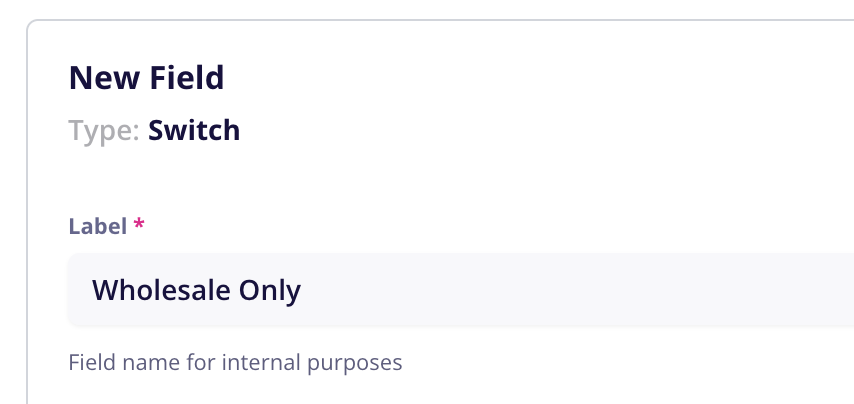
Then, create your wholesale products in CartGenie just like you do for retail products.
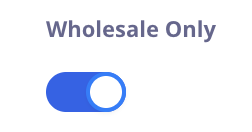
In the “Additional Info” tab, be sure to toggle on your new switch.
In Webflow, create a new page to house your wholesale products. Use Webflow’s password feature to ensure nobody can view it unless they have the password.
Add a CMS Collection List block, and add our Product Card component.
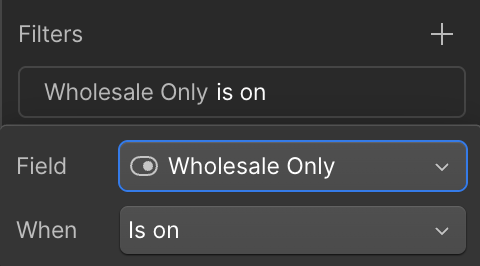
Read TutorialThen, be sure to add a Filter on the Collection List block to only display products that have “Wholesale Only” toggle on (or if you used a Category, then filter by your Wholesale Category).

Now your store has both wholesale products and retail products sold alongside each other in the same checkout and dashboard for easy fulfillment.
If you want even more control and separate user accounts (for either method), you can add Memberstack or Outsetta to your site and give unique logins to each wholesaler.
This allows page by page gating as well to have even more control over what content each wholesaler or non-logged in customers (retail) will see.