
The Product Options CMS collection, which CartGenie creates in your Webflow site, serves several functions including loading swatch selectors for each product.
Without this collection, Webflow wouldn’t be able to load these images, swatches, names, etc for each product.
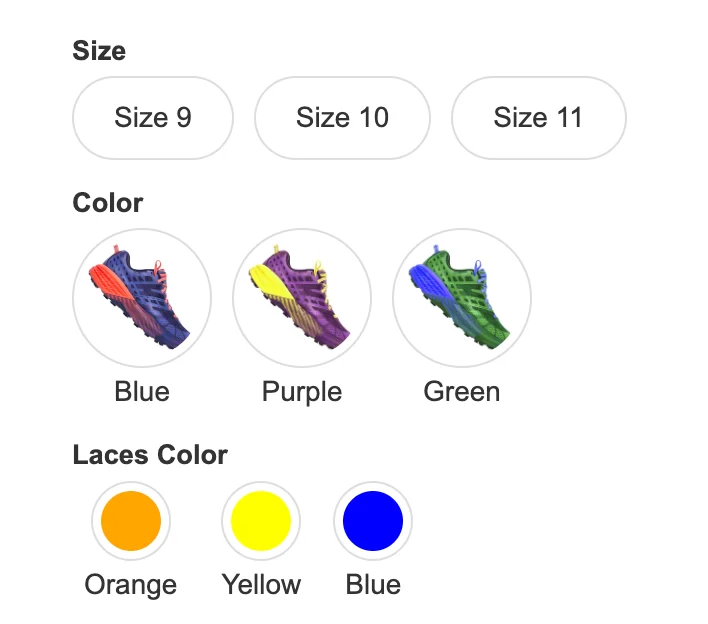
You can add these swatches by following this guide:
Changing product options from a dropdown to a button / swatch style selector
Display your product styles in a beautiful swatch style selector layout
Note: the dropdown selector (default) in CartGenie does not use these product options, but instead loads it dynamically. This reduces setup complexity and time when creating your product or list page.
Other Uses
You can also use the Product Options collection in other ways. Since each product is linked to its option items in your Webflow site, you can add a Collection List block on your product page or list page and list out or reference these values if needed.
Can I delete the Product Options CMS collection?
No – do not delete the Product Options collection in Webflow or else CartGenie will not be able to sync products to your Webflow site.
Can I unpublish the Product Options template page?
Yes, we recommend unpublishing the Product Options template page in Webflow to prevent it from being added to your sitemap and being crawled by google or other bots.
To do this, open your site in Webflow’s designer.
Go to the Pages tab and under CMS Collection Pages, find the “Product Options Template”
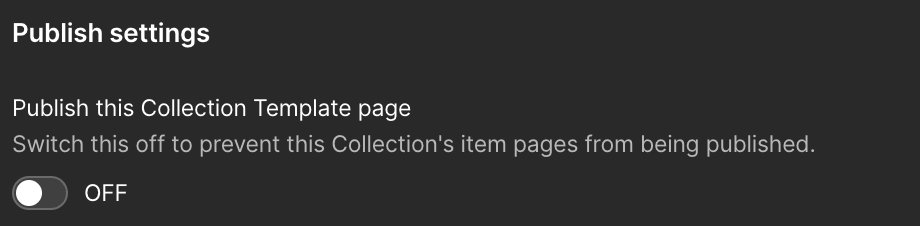
Click the gear icon beside the page name and then toggle OFF the “Publish this Collection Template page” option.
Then Republish your site.
What is the Product Options template page for?
The template page is created by default whenever a CMS Collection is created in Webflow.
However, there is no use for it and we recommend unpublishing it to prevent any issues.